
Projects
Every Store Change on One Project Record
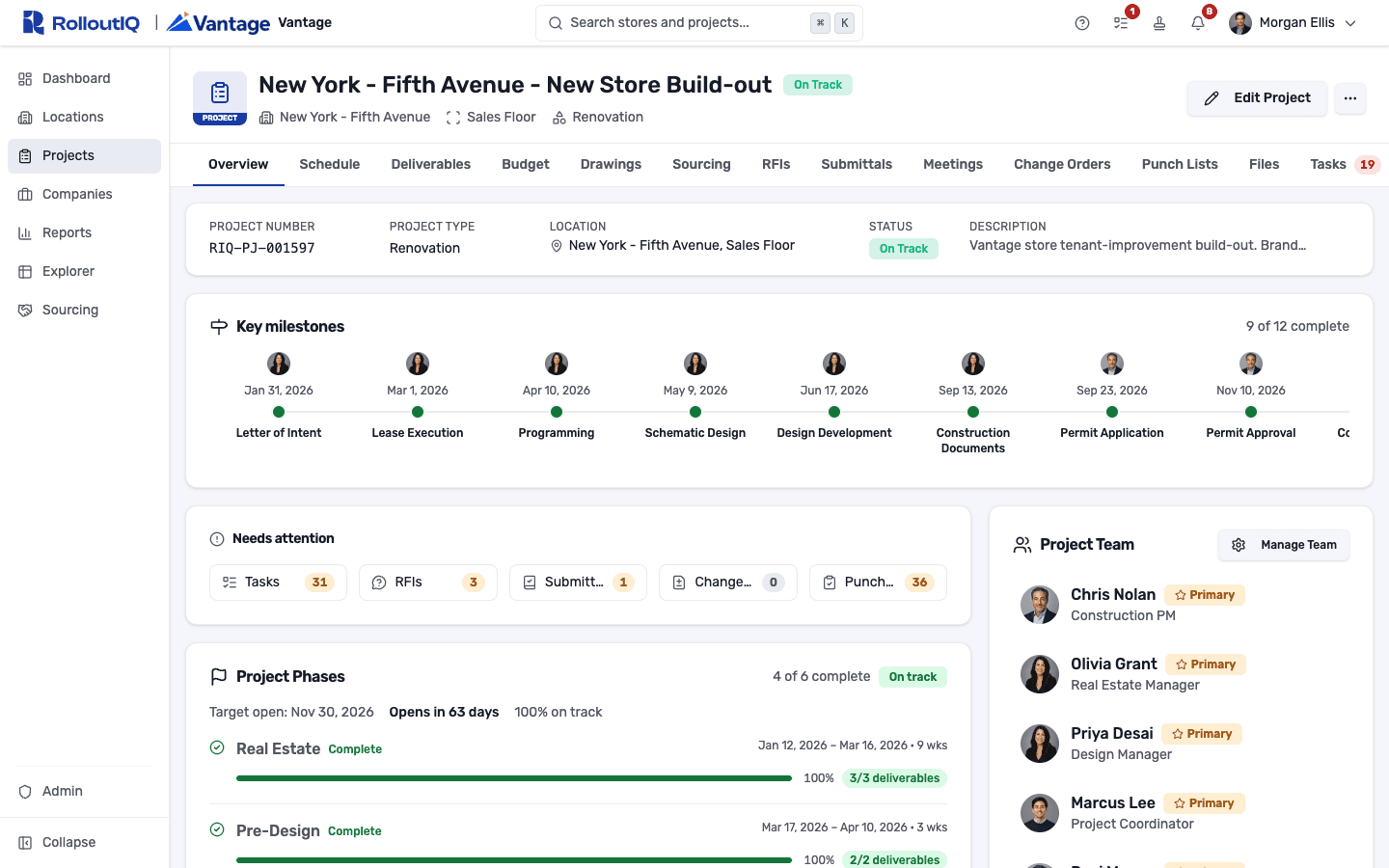
A new build, a remodel, a relocation, or a closure each runs as a Project in RolloutIQ™, tied to the store it changes and anchored to a target open date. The Overview puts the milestones, the phases, the people, and the firms assigned to the work on one page.
The Problem
Where a Store Project Comes Apart
Most teams run a single store across a task tool, a shared drive, an inbox, and a status spreadsheet. Things go missing in the handoffs between them.
Answers That Never Reach the Record
A question gets answered in email and never makes it back to the drawing, so the next person to open the set works from the old answer.
A Status Report That Stays Green
A milestone slips on the schedule while the executive dashboard still reads on track, because the two live in different tools and someone has to copy one into the other.
Access Handed Out by Hand
Each new GC or architect means another round of shared folders and forwarded links. Once the job closes, nobody is sure who can still see what.
What RolloutIQ™ Does
The Project Is the System of Record
Everything about a store's work sits on its project, from the schedule the team races against to the record of who decided what and when.
One Record per Store Change
Every project belongs to a single space at a store and carries a permanent project number, a type, a status, and the target open date the schedule runs to.
An Overview Built Around the Opening
The Overview lays out the key milestones in schedule order and shows each phase's deliverable progress and whether it is on track, behind, or upcoming, with a countdown to opening day.
Team Assignments by Role
Assign people to project roles from the Overview. The same person can be the project manager on one store and a watcher on another.
Access for Outside Firms
Give a general contractor or an architect a role on the project and everyone at that firm picks up the matching access. They see the projects they are assigned to and no other project in the portfolio.
Staffing Gaps Flagged Early
When a project's deliverables or tasks need a role nobody fills yet, Manage Team flags the gap at the top and lets you assign someone in one click, starting with the roles the deliverables depend on.
A Tab for Each Module You Run
Schedule, deliverables, budget, drawings, RFIs, meetings, change orders, and punch lists each open as a tab on the project. A tab someone cannot use never appears, so an invited vendor sees a shorter row than your project manager does.
Highlights
Inside a Project
The portfolio list, the Gantt, and each store's Overview all read from the same project records, so a director's portfolio view never disagrees with the project page a PM is working from.
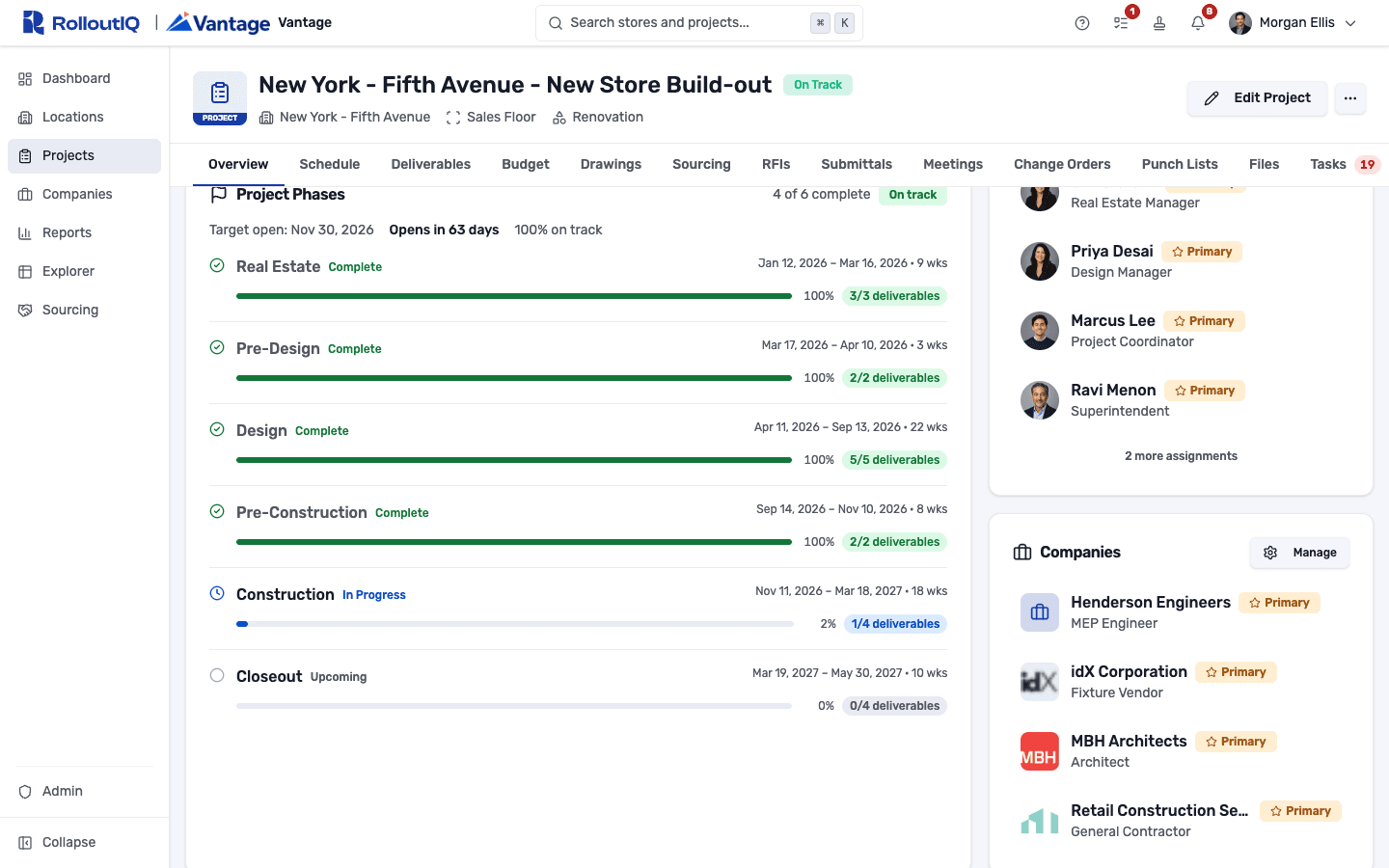
Phases, team, and firms on the Overview
Scroll the Overview to see every phase with its dates and deliverable progress, next to the project team by role and each company assigned to the job.
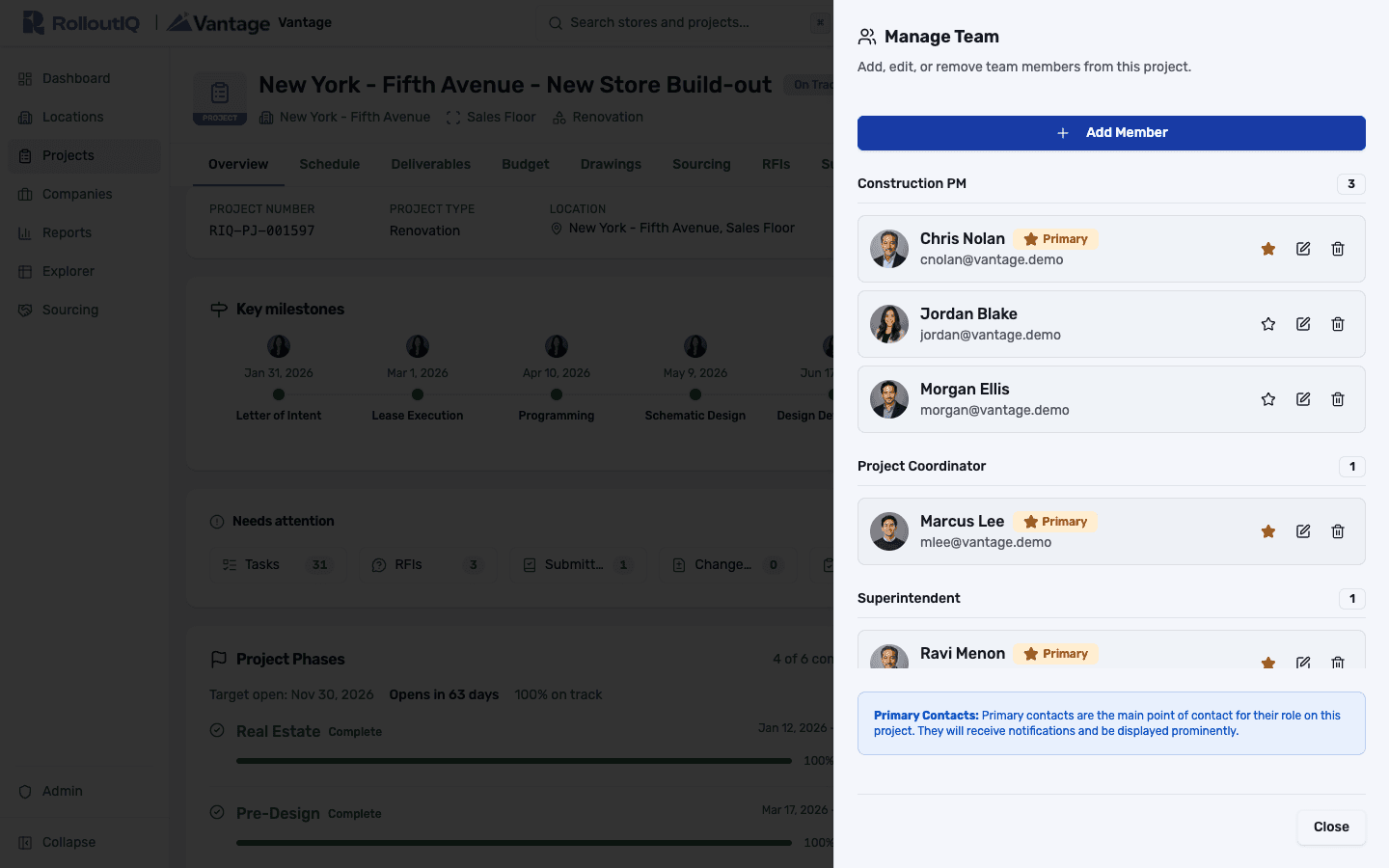
Staff the project by role
Manage Team groups people under the roles they hold on this project. Add a member, change a role, or remove someone, and the edit is logged in the project's audit trail.
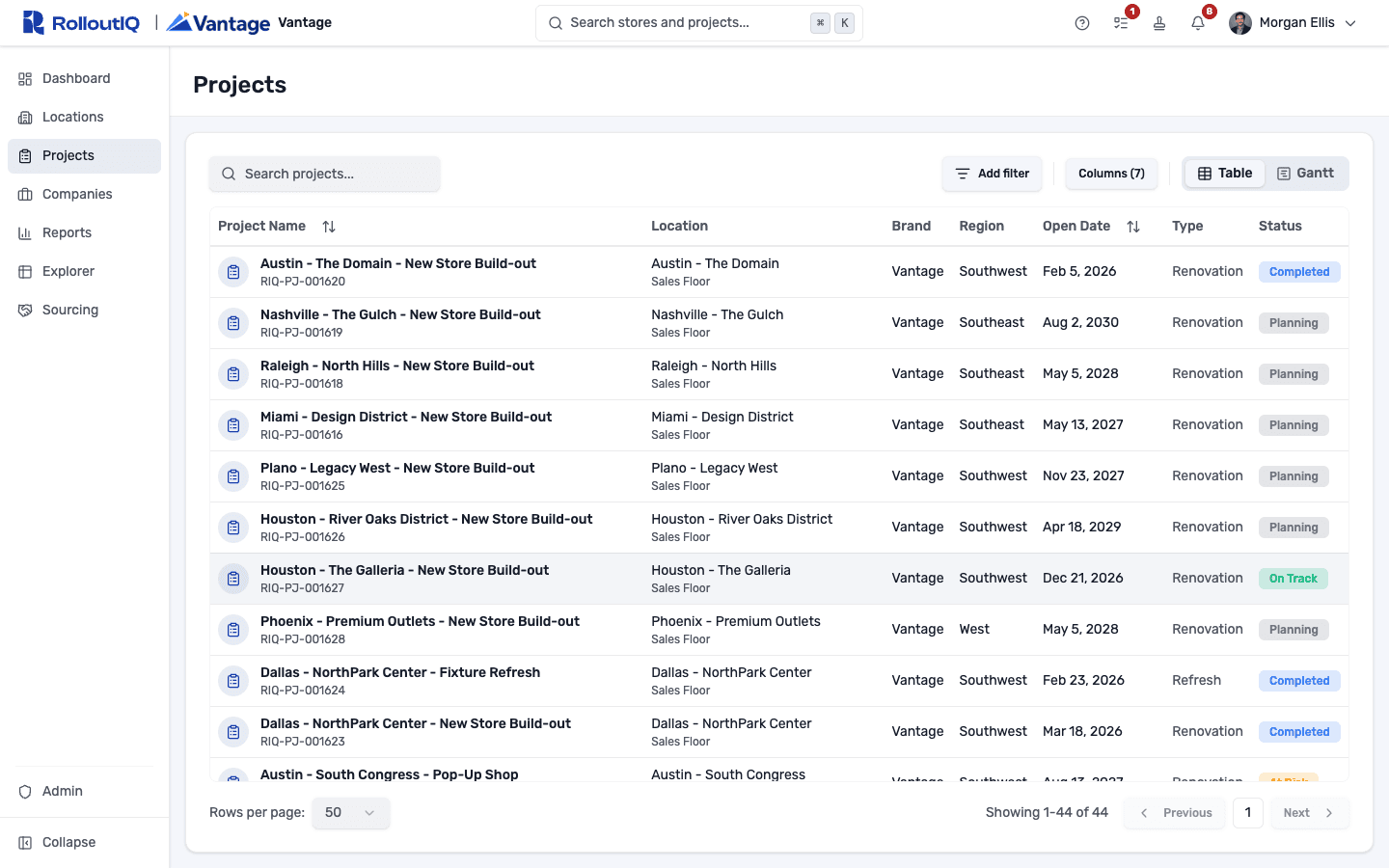
Every project in one list
Filter by brand, region, location, type, or status, and search by project name, store, or project number. Numbers match in any format, so 47 finds RIQ-PJ-000047.
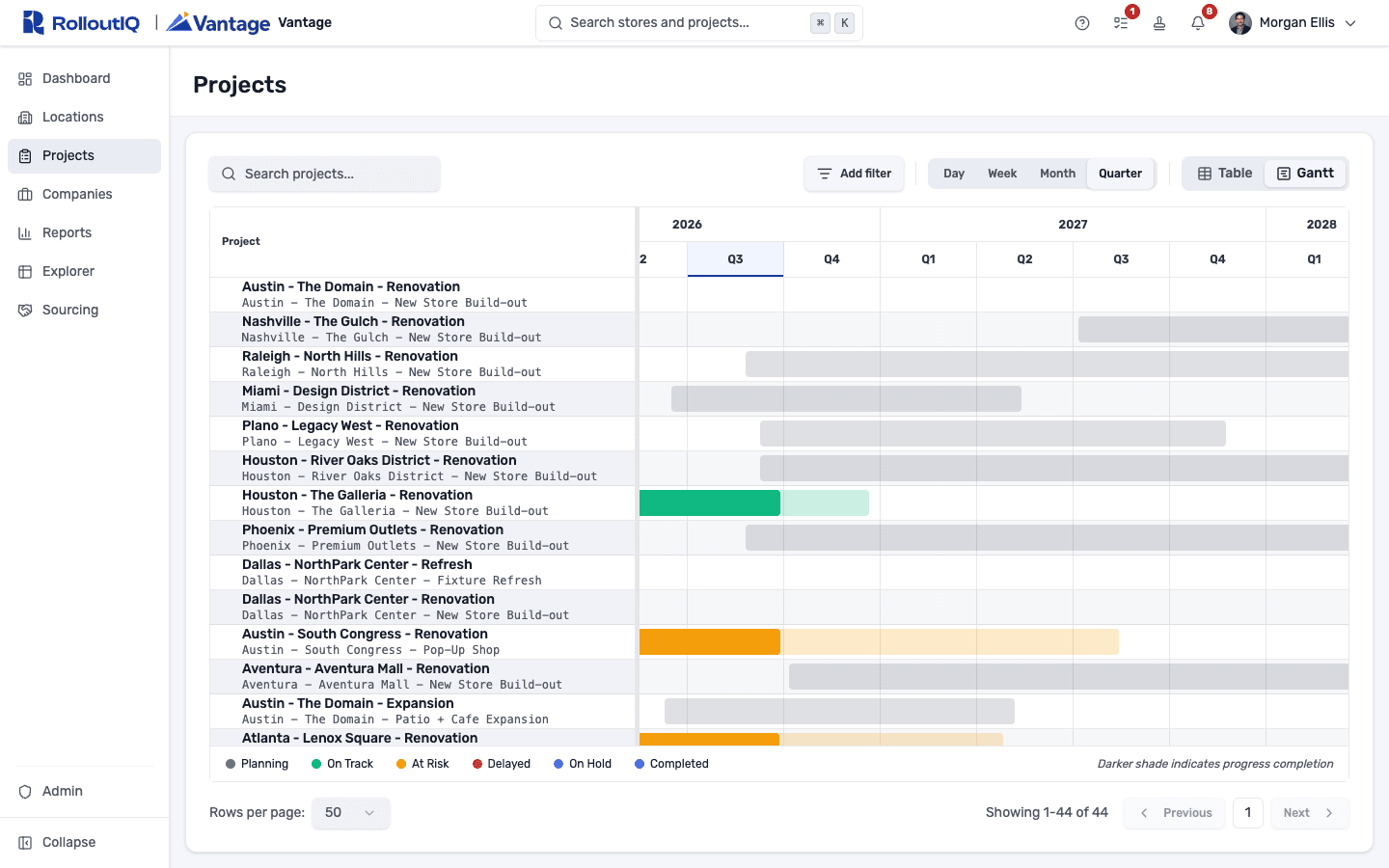
Switch the list to a Gantt
One toggle turns the same list into a Gantt. Each project runs as a bar from its first key milestone to its open date, colored by status, so the openings that bunch up in a quarter stand out.
In Practice
How Multisite Teams Use It
Run the Monday Portfolio Review
A construction director filters the list to a region, switches to the Gantt to see which openings crowd the same quarter, then opens any project's Overview for the detail behind it.
Bring a GC Onto the Job
Assign the general contractor's firm a role on the project. Its people with accounts pick up access to that project, and the rest of your portfolio stays hidden unless the firm holds a role there too.
Keep the Record When a Store Is Called Off
Cancelling takes one click, and the project stays in lists, search, and reports. If the store comes back, changing the status reactivates the project with its history intact.
FAQ
Projects FAQ
A project is the time-bounded workflow that delivers one change to one store, such as a new build, a refresh, a remodel, a relocation, a conversion, or a closure. It is anchored to a target open date and holds the schedule, drawings, RFIs, tasks, files, and team the work needs.
No. Outside firms see only the projects they, or their company, have been given a role on. Owners and admins see every project, and everyone else sees what their role assignments allow.
Cancelling keeps the project in lists, search, and reports and can be reversed by changing its status. Deleting removes the project and its dependent records after showing you a summary of what goes with it. Sourcing requests are kept, and there is no restore button, so deleting is meant for correcting a project created by mistake.
Ready to Give Every Store Change Its Own Project Record?
See a real project Overview, from the first key milestone to the countdown on opening day. Book a demo with our team.