
RolloutIQ for iPhone, iPad and Android
Take the rollout to the job site
The RolloutIQ app puts every store, schedule, sheet set, punch walk and progress photo on the phone or tablet you already carry. It signs in to your company's workspace with the account you use on the web, so the record you check in a mall corridor is the one the office is working from.


The app is included with every RolloutIQ plan, and you sign in with your workspace account.
Locations
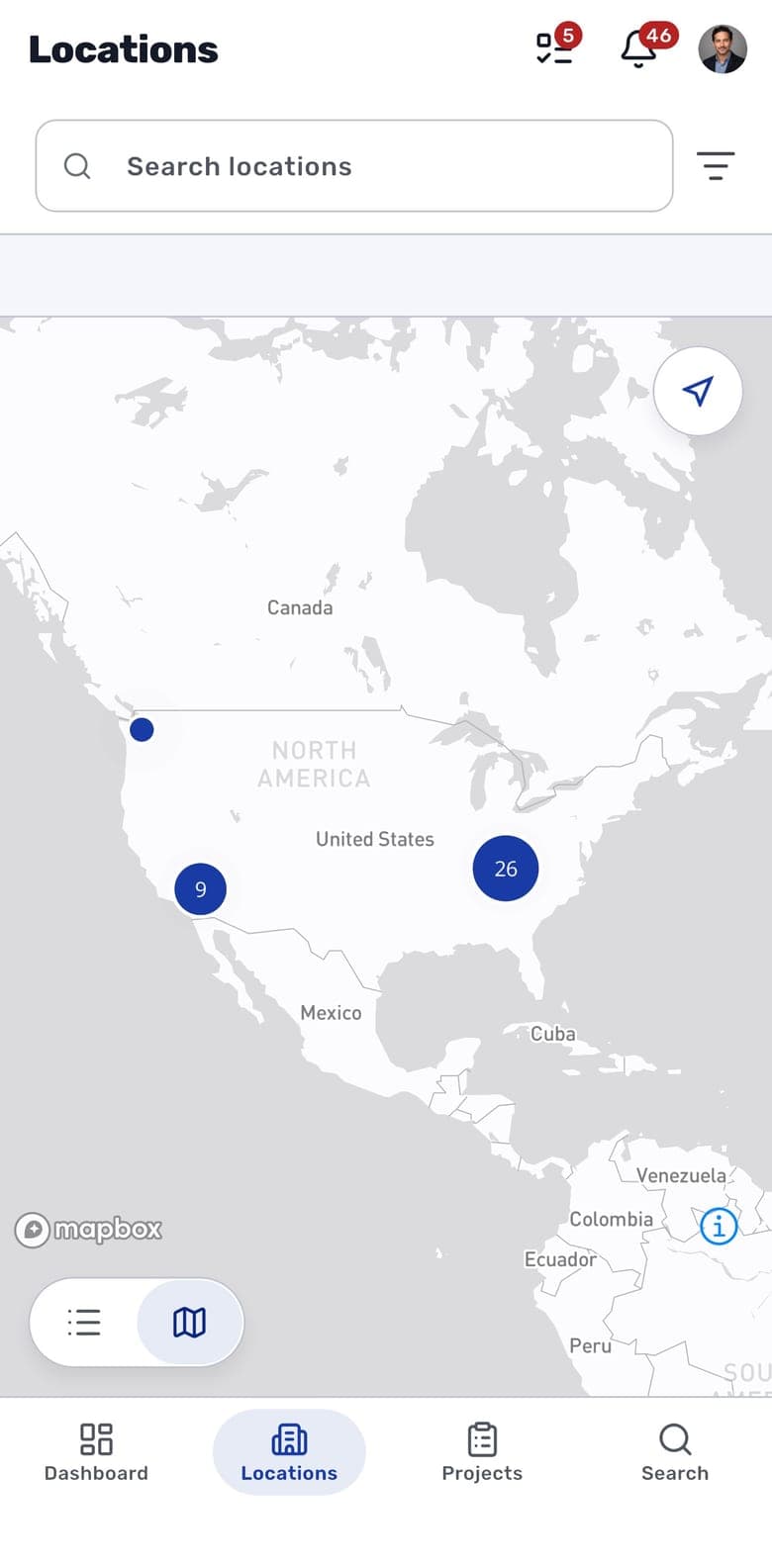
Every store, on a map or a list
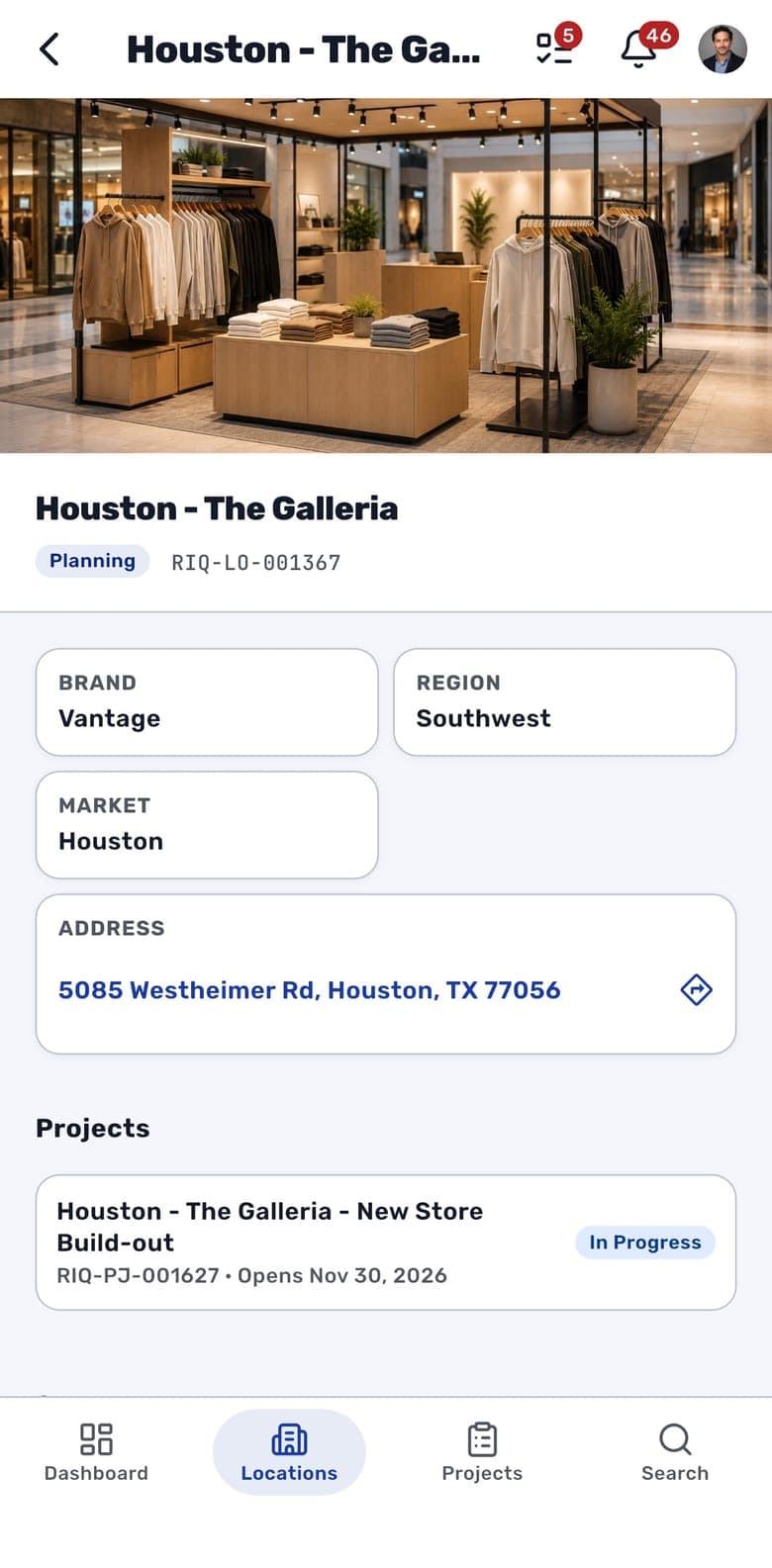
Field leads spend their days in a car between sites. The app opens on the same store register the office uses, filtered by status, brand, region and market, and plots it on a map. Near me shows where you are and which stores are closest. Any store opens to its photo and key facts, and its address hands directions to your maps app.
- List and map views share one set of filters
- Crowded pins group into a counted bubble that zooms in when you tap it
- A location's projects and spaces on its page, with directions in Apple Maps or your default Android maps app
Projects
Where the build stands before you walk in
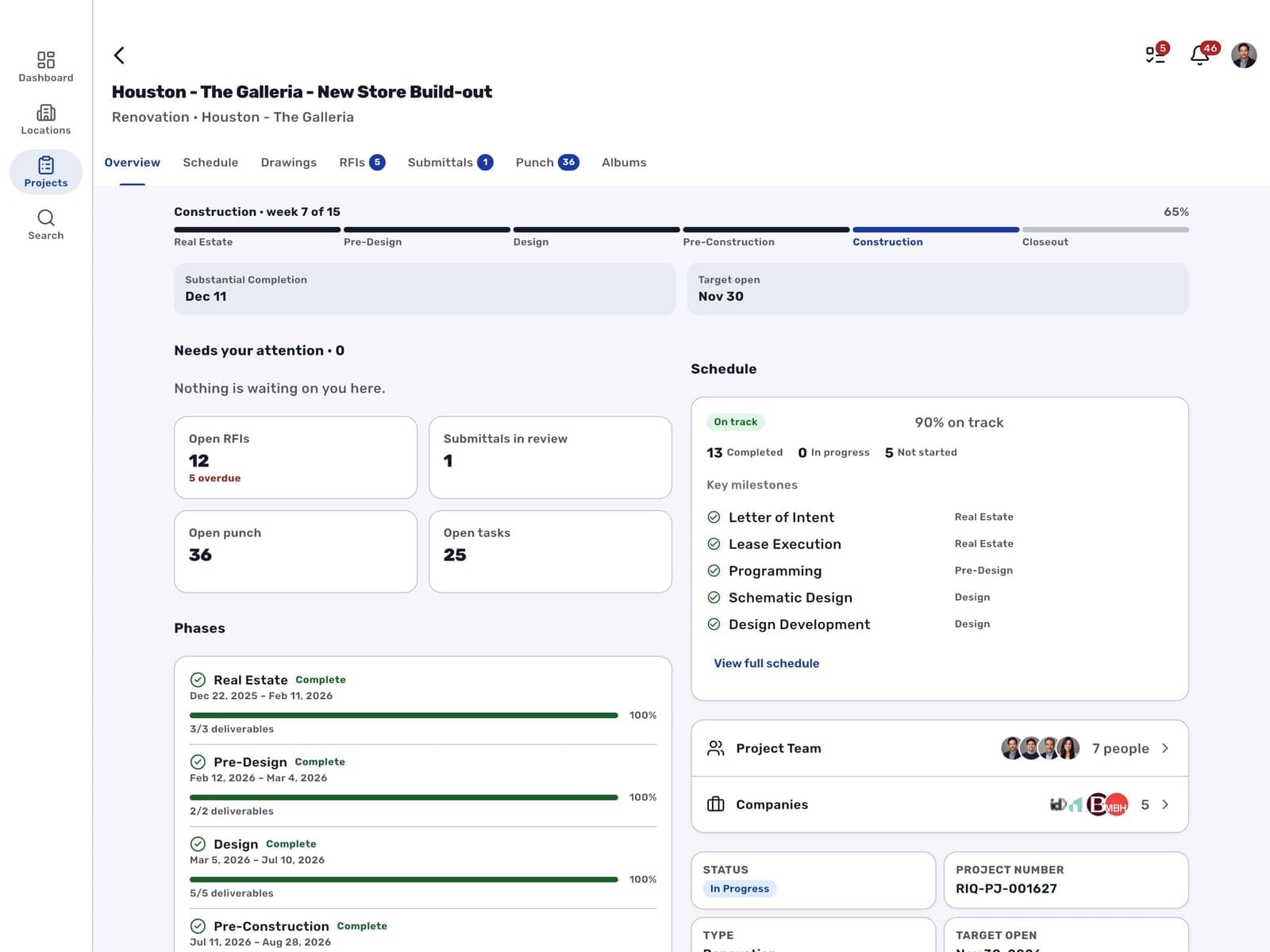
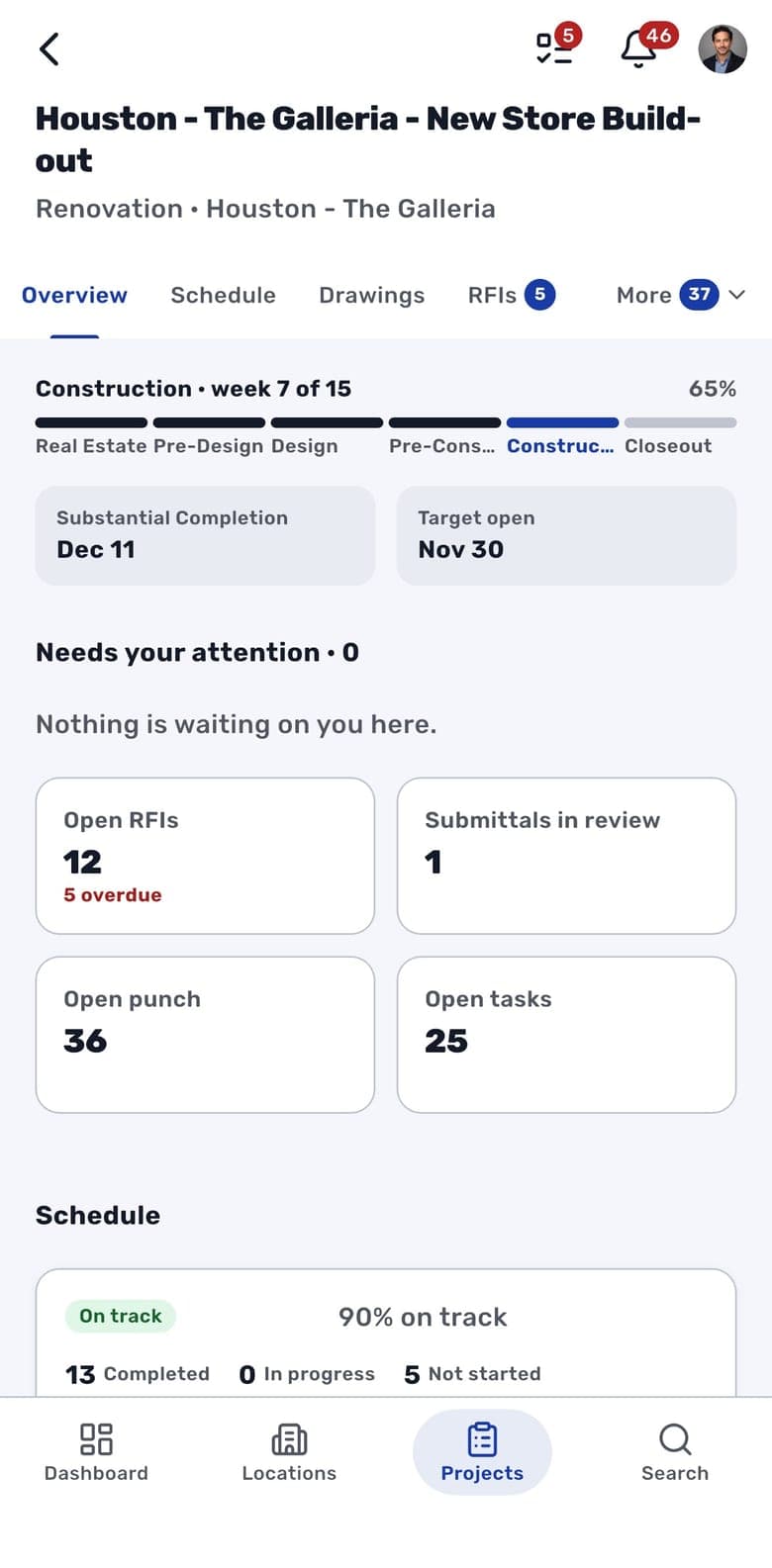
Each project opens on its Overview, with the current phase and how far through the schedule the build is. Below that sit the substantial completion and target open dates and anything waiting on you, then counts of open RFIs, submittals in review, open punch items and open tasks.
- Phase progress across the top of every project
- What needs your attention, called out by name
- The project team and companies one tap away
Schedule
Every phase of the schedule, and what each item is waiting on
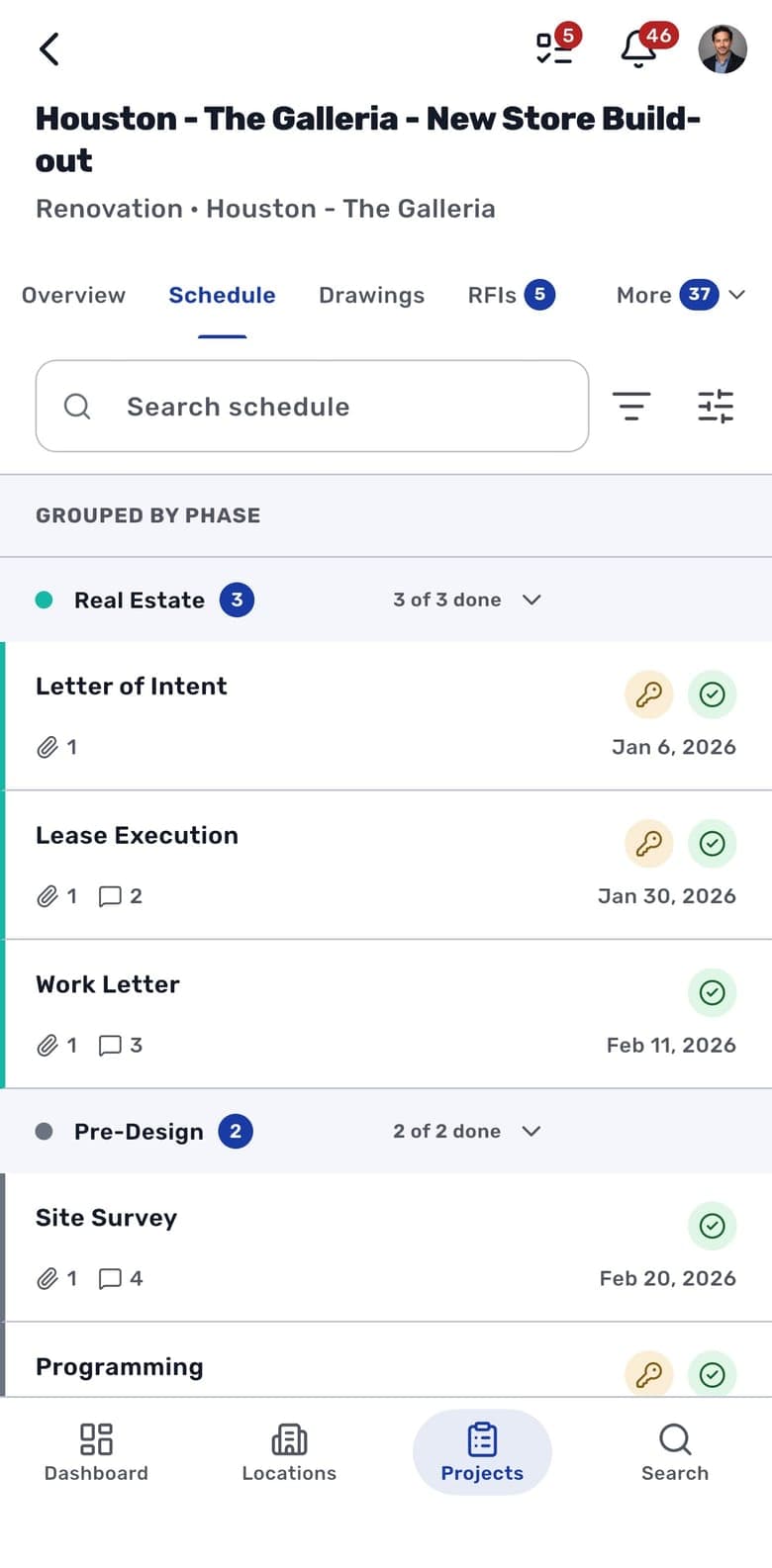
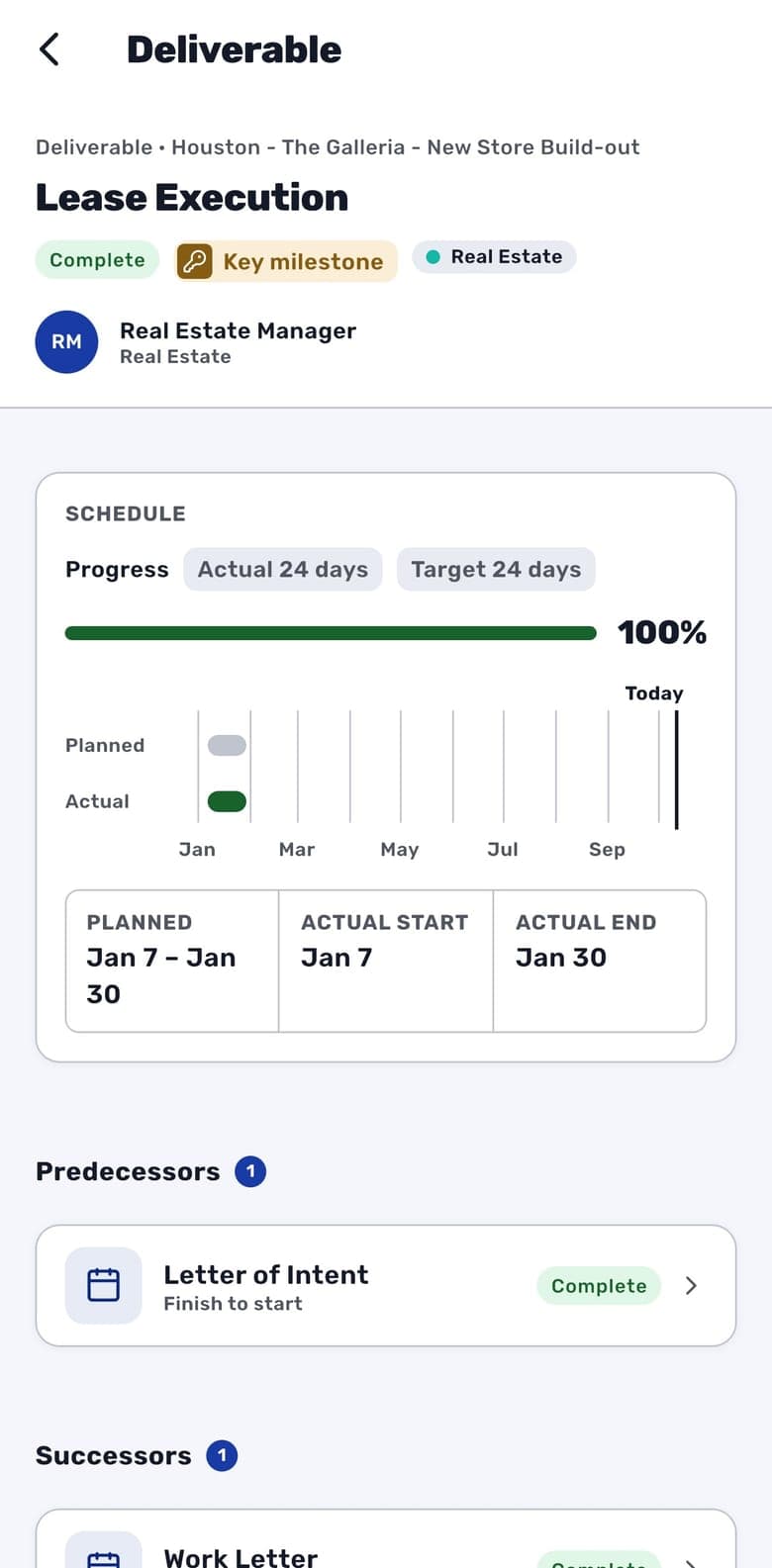
On a phone the schedule reads as a list grouped by phase, and each phase header counts how many of its items are done and how many are late. Search it, or filter to late items, the ones you own, or key milestones. Open an item and one page shows its progress against plan, its forecast end, who owns it, what comes before and after it, and its tasks, files and comment history. Building and editing the schedule stays on the web.
- Open tasks, files and comments counted on every row
- Key milestones flagged with the same key icon as on the web
- Critical path and float when you turn them on
- Tick off, open and add a deliverable's tasks in place
Drawings
The sheet set in your pocket
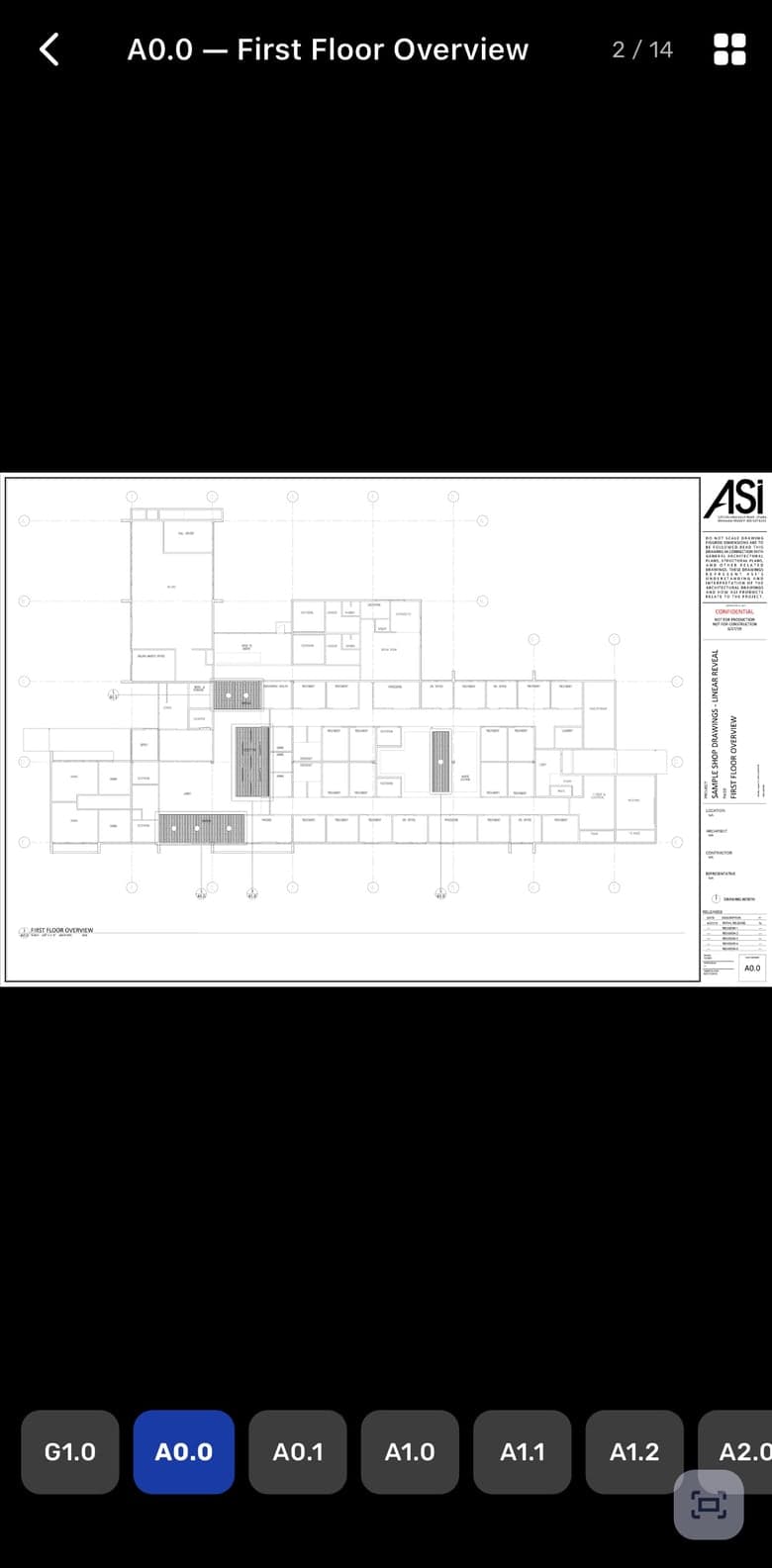
Open any sheet on the project and pinch in to the detail you need while you stand in front of it. Sheets are grouped by discipline in the project's own order. A strip of sheet numbers along the bottom of the viewer moves you to the next one without going back to the list, and sheets stay sharp at high zoom.
- List or thumbnail grid filtered by discipline, with the current revision under every sheet
- Search the set by sheet number
- Share a sheet or save a copy from the viewer
- Uploading and issuing sheets stays on the web
RFIs and submittals
Know who holds the ball on every open item
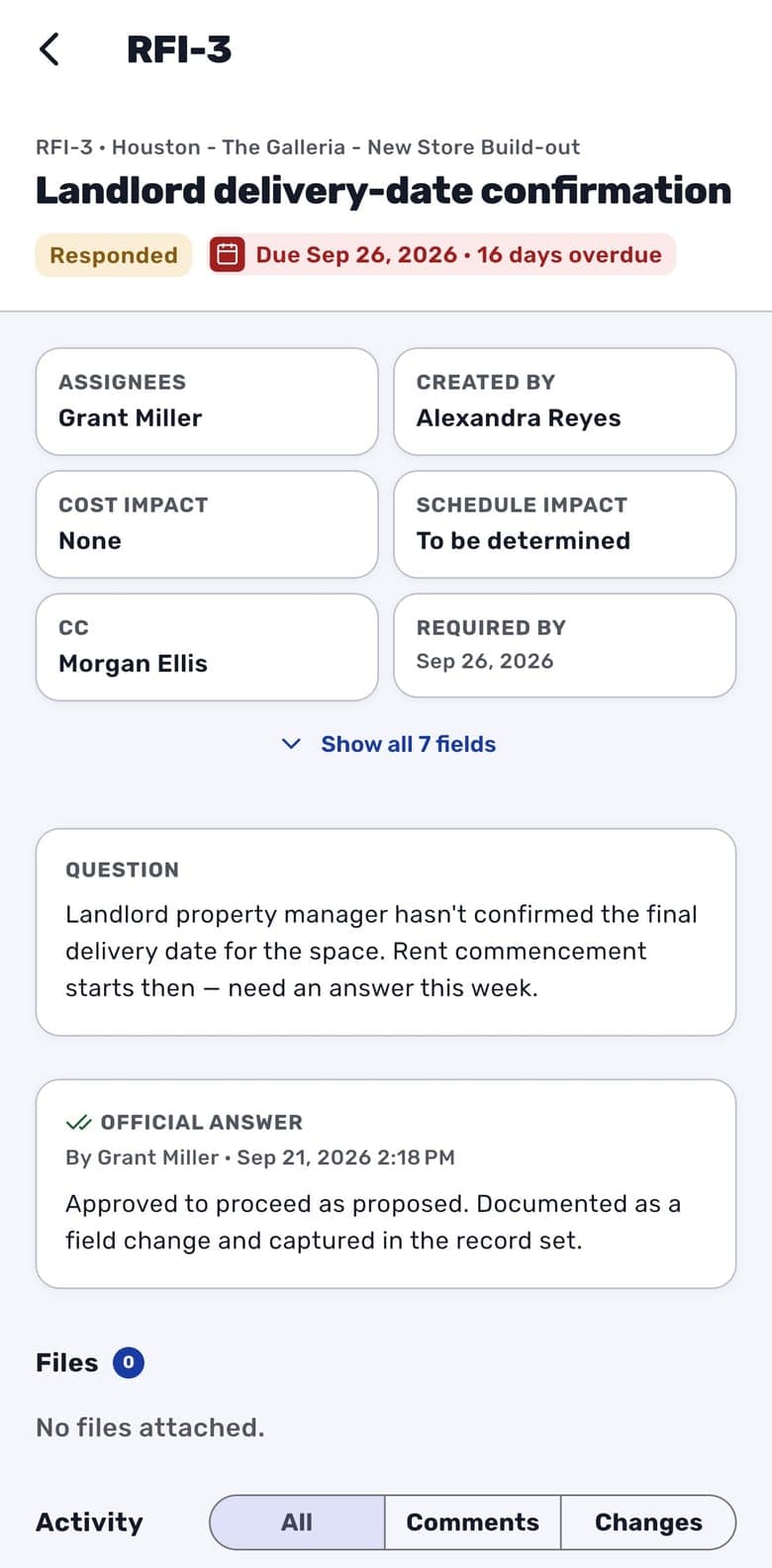
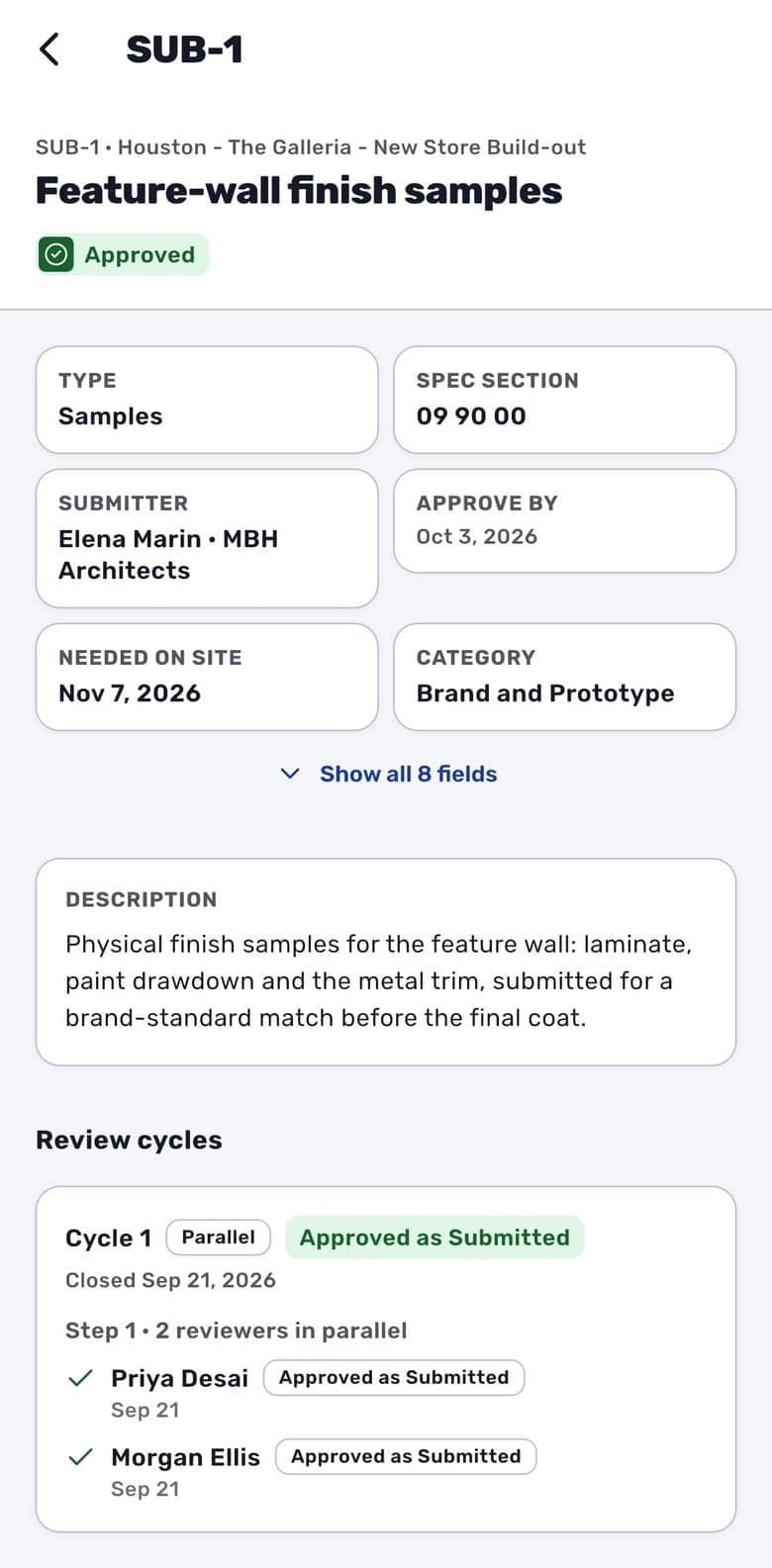
From the field you can search and filter the RFI log and the submittal register, and every row says who has the item and when it is due. An RFI opens with its cost and schedule impact, the question and the official answer, while a submittal leads with its review cycles and how each reviewer decided. Files and the full activity history come with both.
- Due status on every row, overdue items called out
- Official answers and reviewer decisions in full
- Comments and changes on one activity timeline
- Comment with @mentions, bold, lists and links
Punch lists
Punch items pinned where the problem is
Walk the store with the floor plan open. Tap the spot where the problem is and a pin drops there, then fill in the severity, trade, area and assignee and attach photos from the camera. Pins take their status color, so open work stands out on the plan, and each item moves through the workflow it follows on the web, from Start work to Close.
- Pins numbered and colored by status on the plan
- Severity, trade, area and assignee on every item
- Photos from the camera, your library or files
- Long-press and drag to move a pin
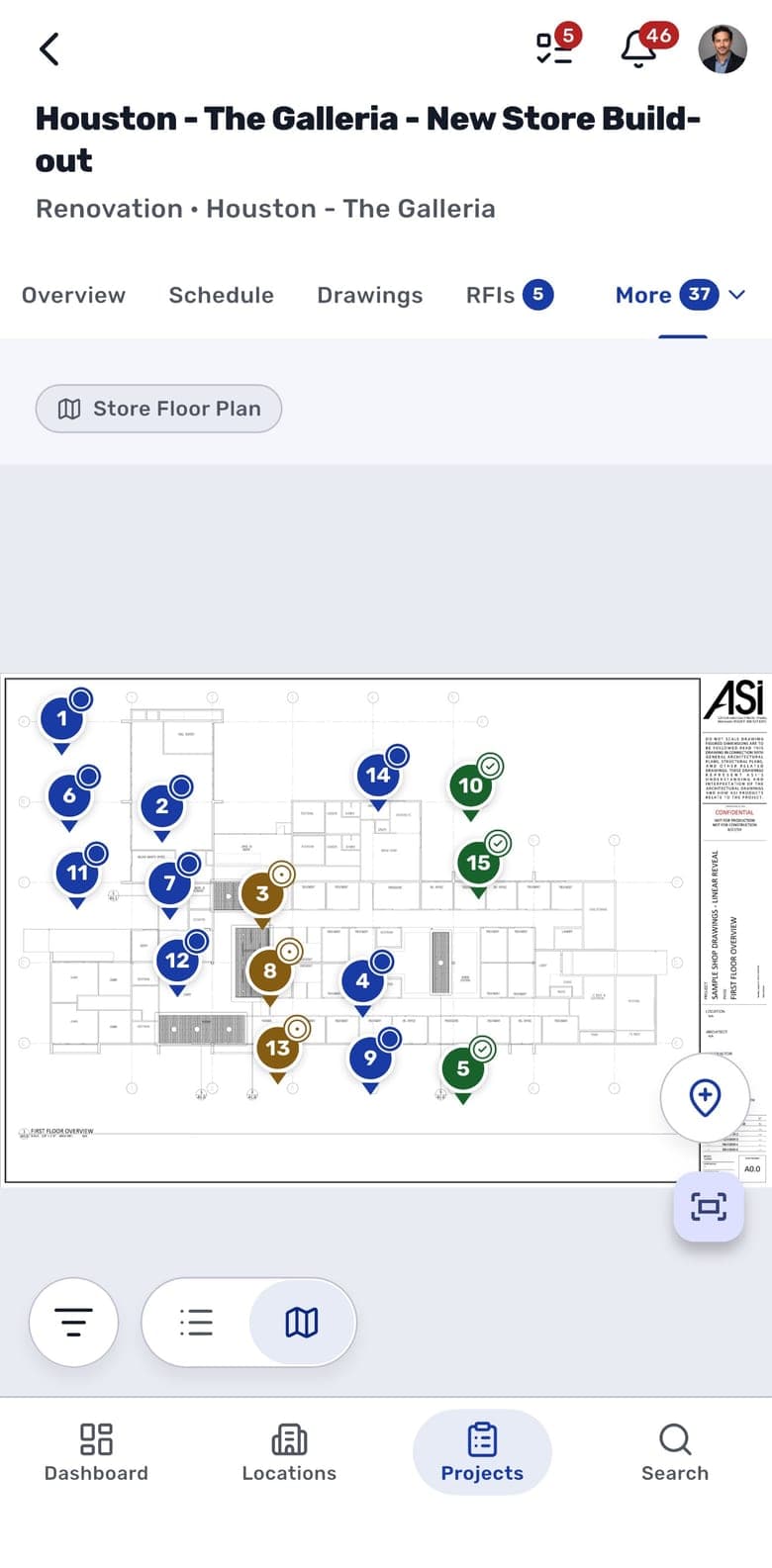
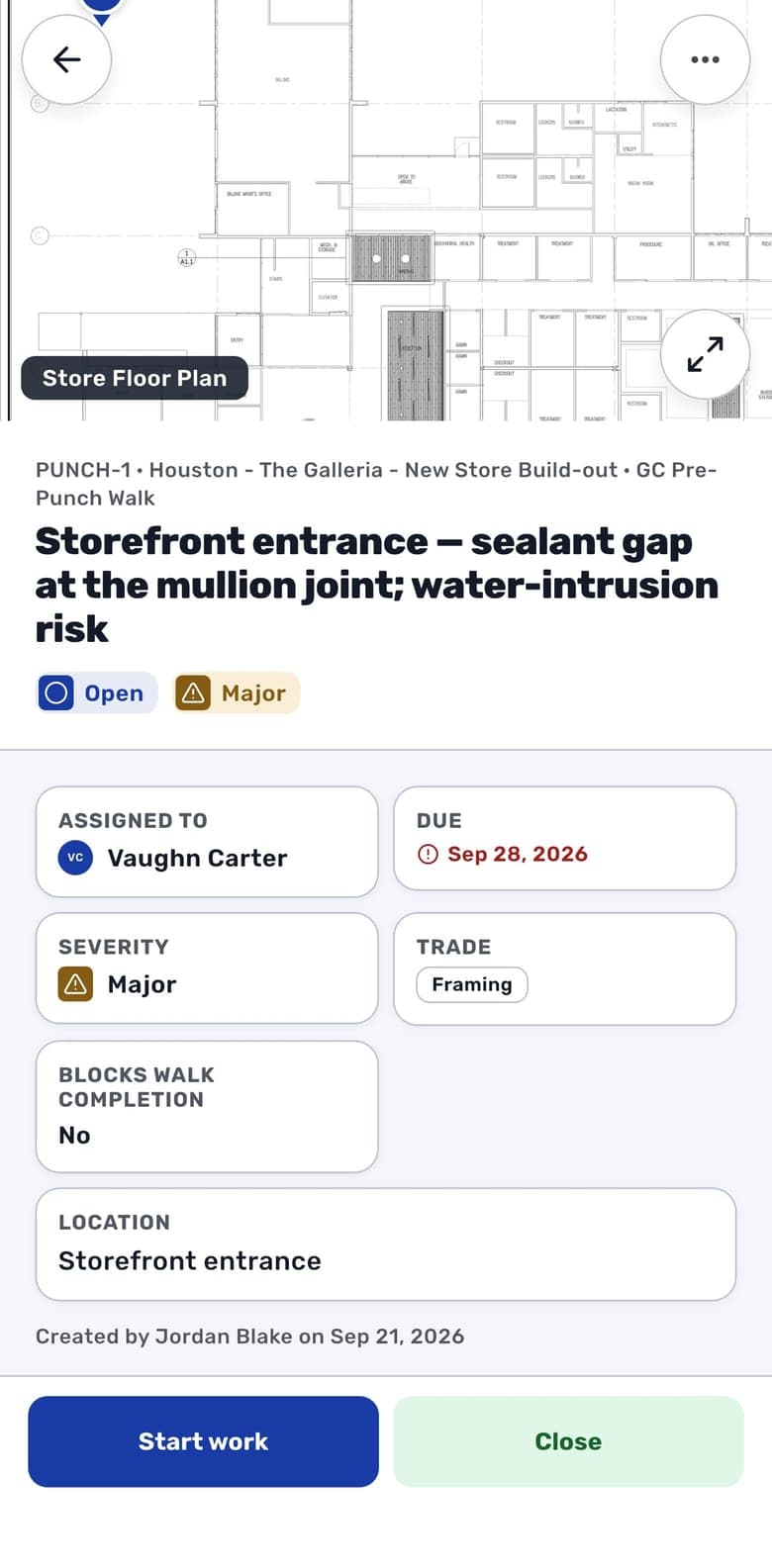
Photo albums
Progress photos that land on the project
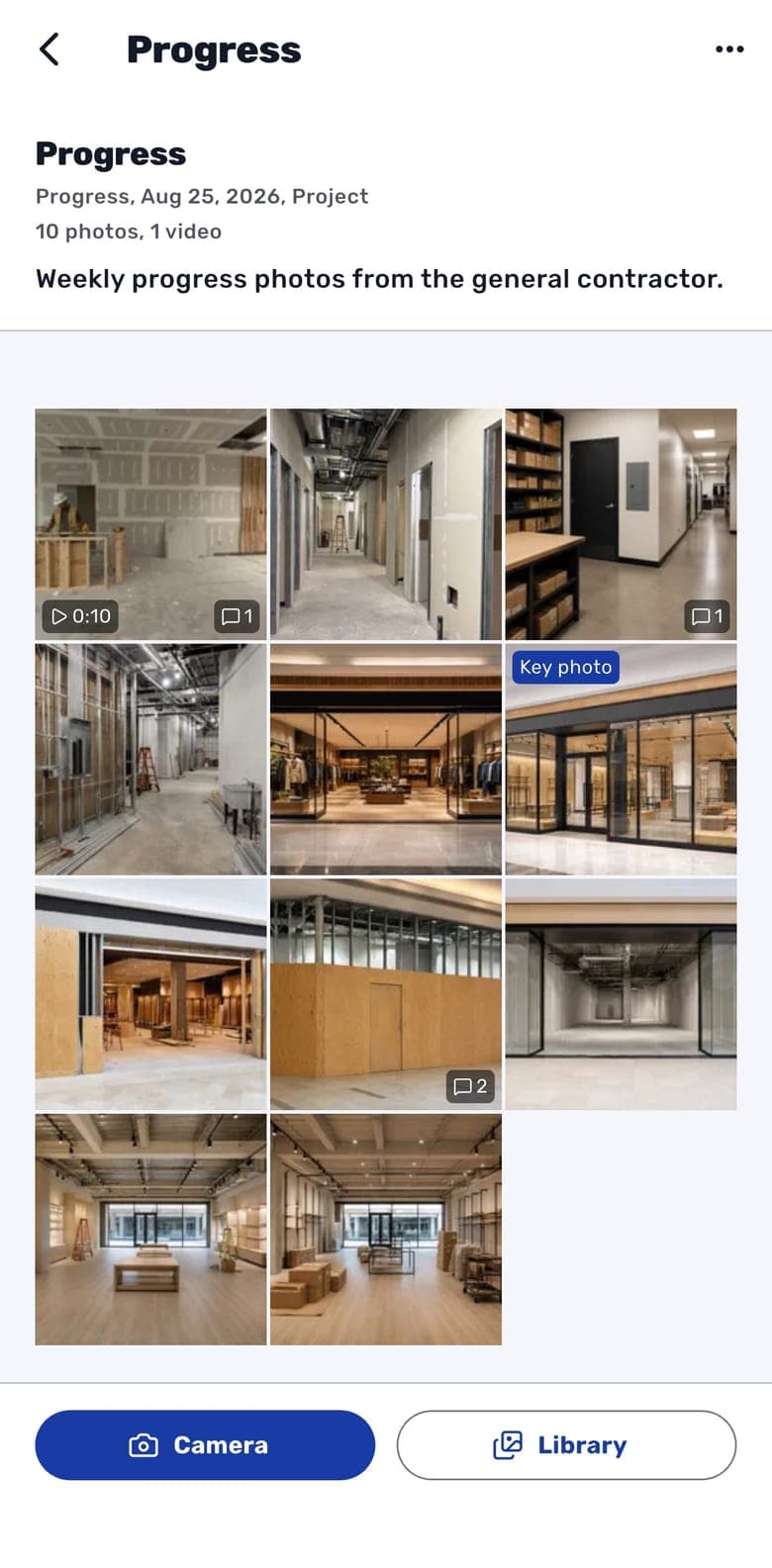
Shoot photos and walkthrough videos into a project's album from the app's camera, or pick a batch from your camera roll. Each one uploads as the original file with its capture time, and a photo shot in the app also records where, if you allow location. You can lock the phone and drive to the next store while the uploads finish. Back at the office, the PM can see what is new since their last visit and leave a comment on the shot of the storefront header.
- Albums typed as Progress, Site Visit and more, each visible to the project, internal or private
- Photos and videos in the order they were taken, full screen
- Captions and a key photo, plus comments on a single photo or the whole album
- Videos up to 2 GB, and large ones pick up where they left off
Every day
Your work, wherever you open the app
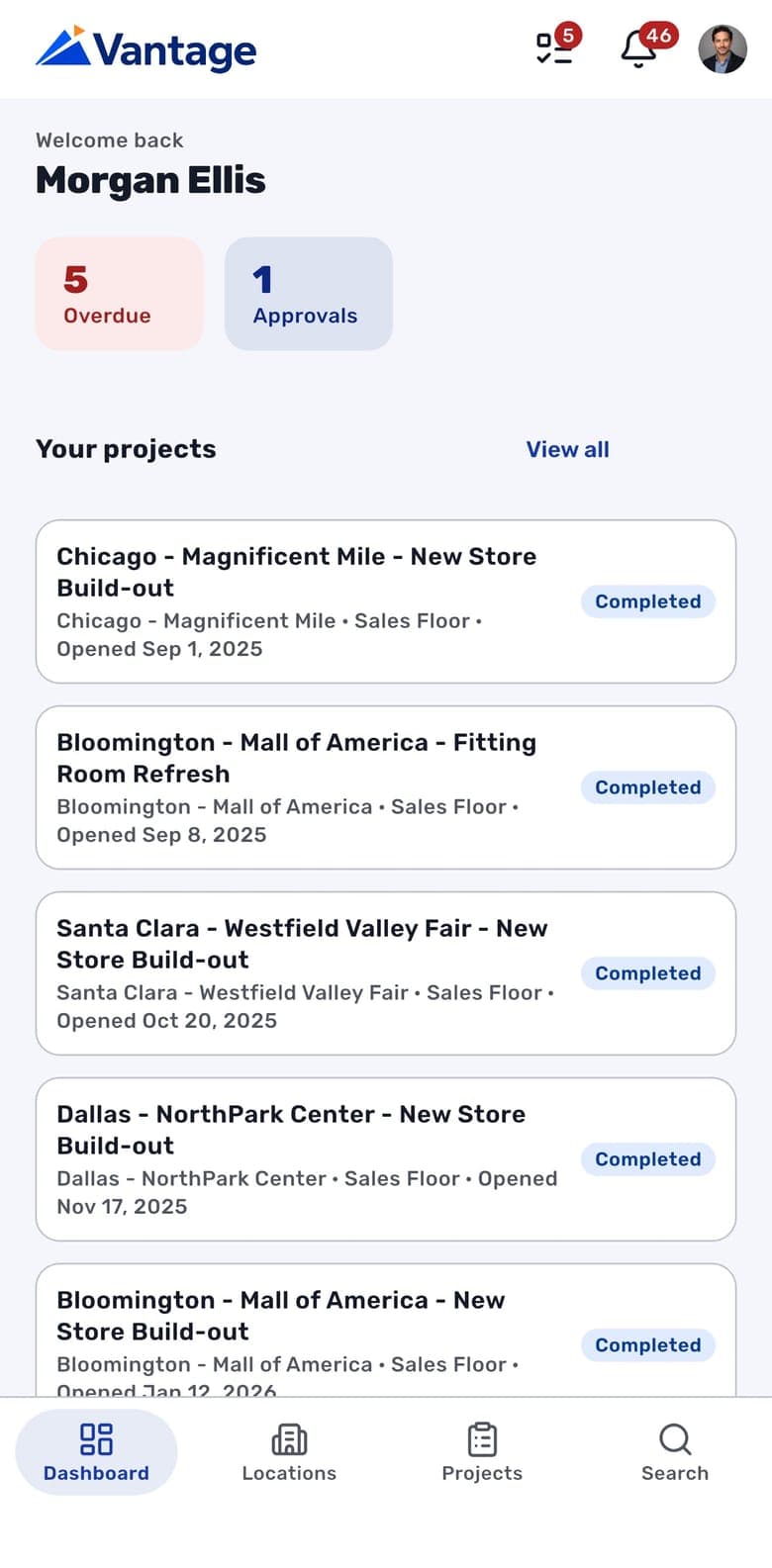
The Dashboard opens on what is overdue, due this week and waiting on your approval, then your next projects by target open date. My Tasks groups what you owe across every project by when it is due, and you can tick one off where you stand or open it to change its status, due date or assignee, or leave a comment for whoever is waiting on it. The tasks button next to the bell counts what is overdue or due today. Search finds any project or location by name as you type.
On a tablet
Built for the iPad on the site walk
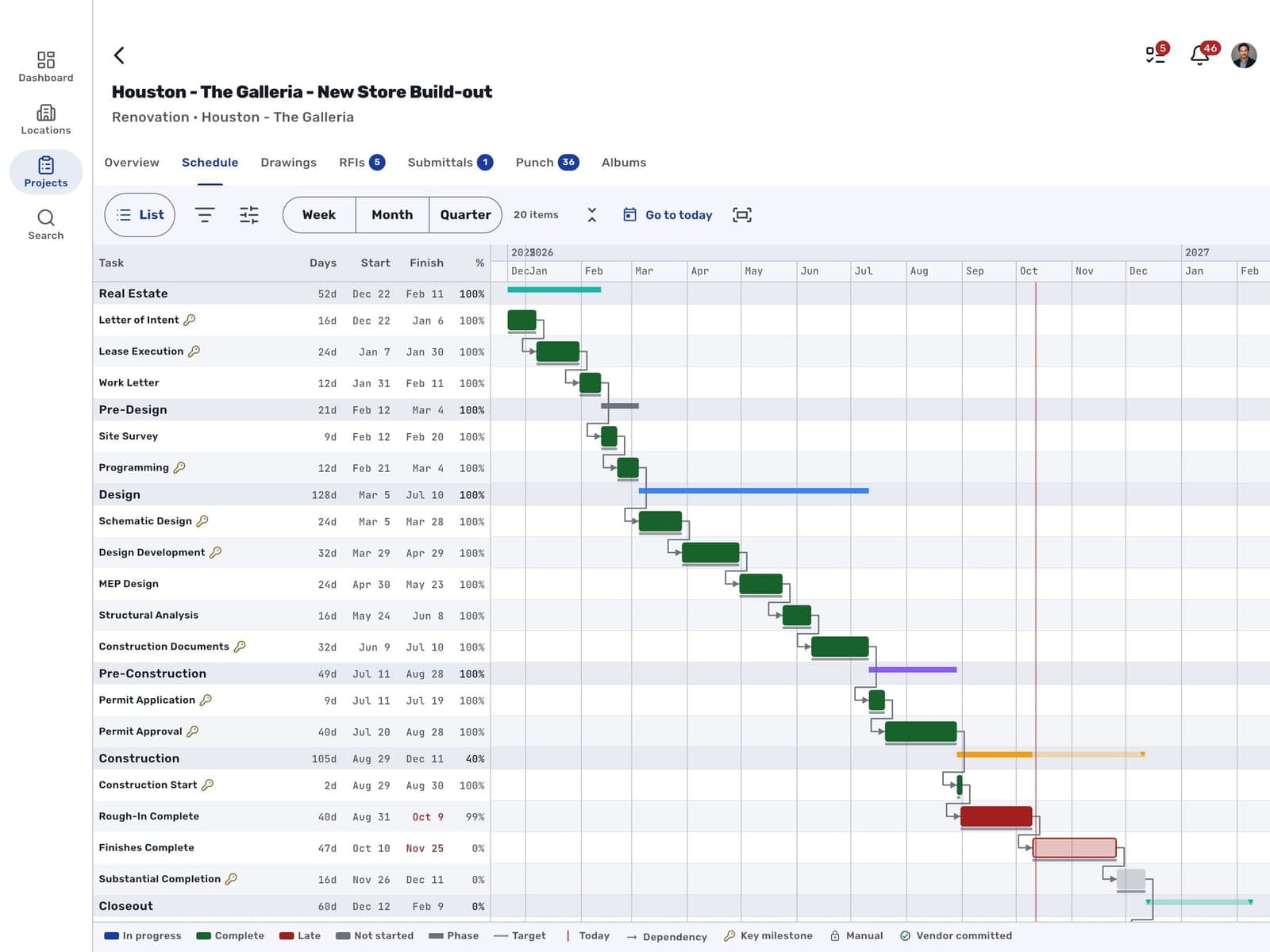
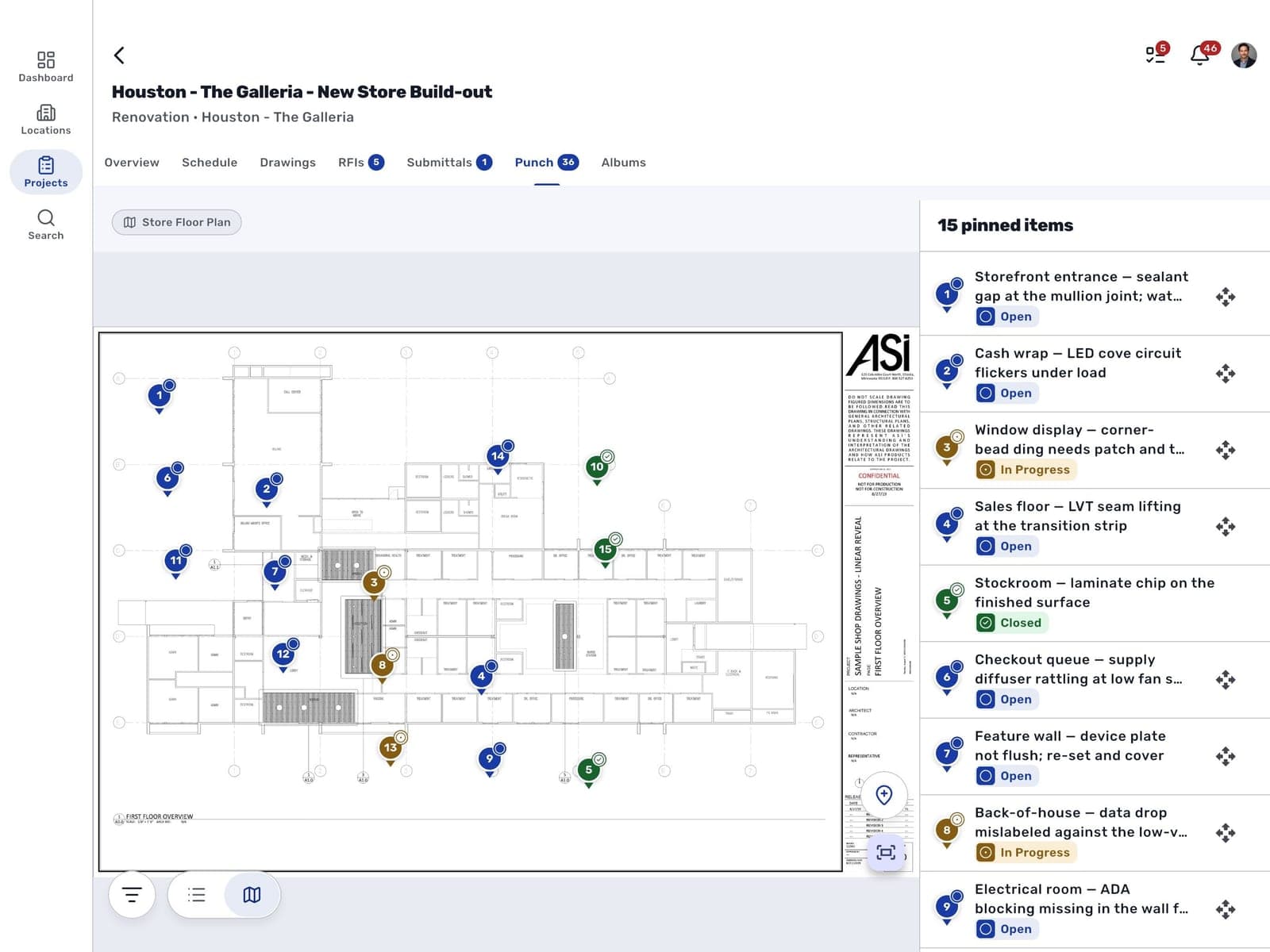
A tablet shows a full plan and still goes through a store in one hand, so the app uses the room. The main sections move to a rail down the side. Lists and records sit side by side, every project module gets its own tab, and the schedule becomes a Gantt chart with phase bars, dependency arrows and a line for today, on a week, month or quarter scale. Tap a bar and the item opens in a drawer beside the chart. On a punch walk the floor plan sits beside a panel listing every item pinned to it.
One account for web and app
Nothing new for IT to provision
People sign in to your workspace with the email and password they already use on the web, and they see what their role allows, the same as at a desk. Preferences for language, time zone and formats follow them between the web and every device.
- Your organization's workspace, branded with its logo
- Permissions carried over from the web platform
- Nine languages, including Spanish, French, Japanese, Chinese and Arabic
- A Devices list to sign out a lost phone remotely
What runs where
The app is the field companion to the web platform
FAQ
Frequently Asked Questions
The app comes with every RolloutIQ plan, and there is nothing to buy inside it. Anyone with an account in your workspace can install it from the App Store or Google Play in any country and sign in with the email and password they use on the web.
iPhone and iPad running iOS 15 or later, from the App Store, and Android phones and tablets running Android 7.0 or later, from Google Play. On iPad and Android tablets the app switches to its tablet layout.
Yes, if they have an account in your workspace. They sign in like your own team and see what their role and project access allow.
Budgets, change orders, sourcing, meetings, portfolio reports and workspace administration run on the web platform. So do uploading and issuing drawing sheets and building or editing the schedule. The app covers the field work: locations, projects, schedules, drawings, RFIs, submittals, punch lists, project photo albums and your tasks.
English, Spanish, French, German, Italian, Portuguese, Japanese, Chinese and Arabic. Each person can pick a language or follow the device, and the choice follows them to the web.
See a rollout from the office and the job site
Book a demo and we will walk a store build-out on the web platform and in the app, against the same live project record.