
Photo Albums
Every Site Photo on the Project It Belongs To
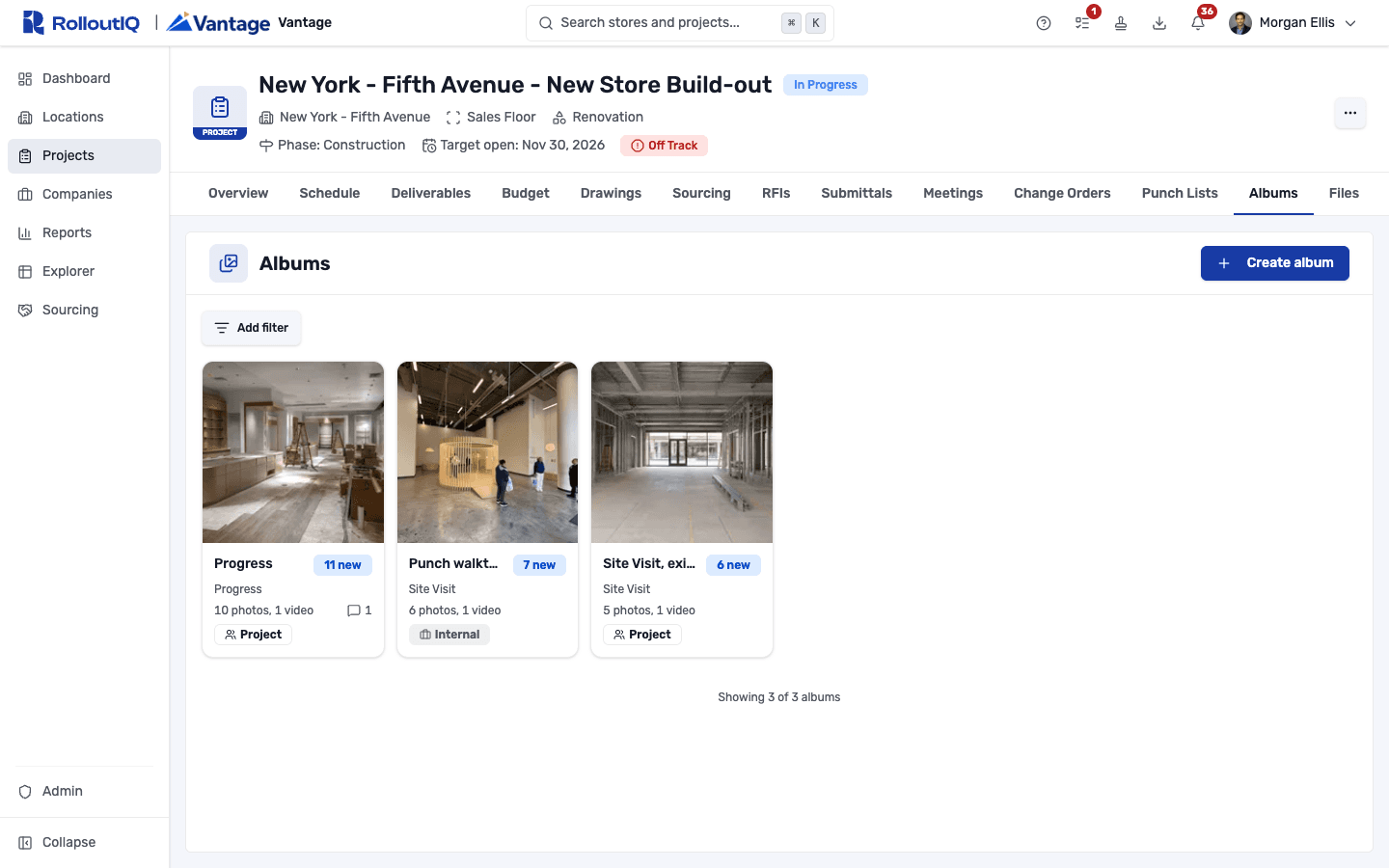
Progress shots and walkthrough videos from site land in named albums on the project, sorted by when each one was taken. Your team decides who sees each album, and a comment stays attached to the photo it is about.
The Problem
Where Site Photos Go Missing
For a project manager who can't visit every store each week, photos are the fastest way to understand a site, and they end up scattered across phones and contractor emails.
Camera Rolls and Group Texts
Progress shots sit on a superintendent's phone or in a reply-all thread, and they leave with whoever took them.
Re-Uploading From Email
The brand team saves attachments from contractor emails and PDF reports, then files them by hand, one project at a time.
Feedback With Nothing to Point At
A note points to the third picture in Tuesday's email, and nobody can tell which photo it meant.
What RolloutIQ™ Does
How Albums Work
Every photo and video keeps its caption and comments long after the people who took it have moved on.
Albums by Type and Date
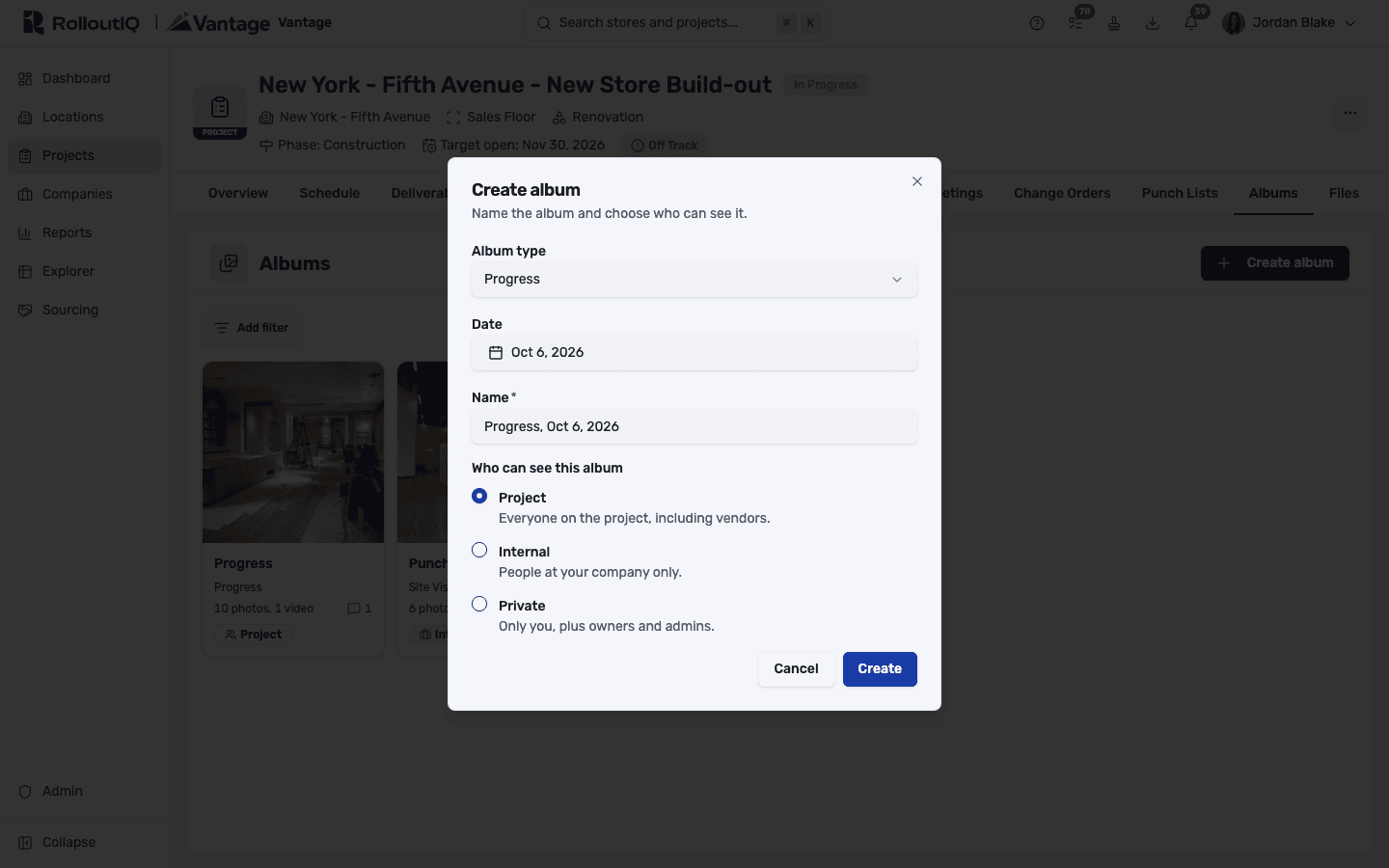
Create an album by type, such as Progress, Site Visit, or Marketing, and a date, and RolloutIQ suggests the name. Admins add, rename, translate, and retire the album types your teams pick from.
Three Visibility Levels
Project albums are open to everyone on the project, vendors included. Internal albums stay within your company, and Private albums are for the creator plus owners and admins. Narrowing an album also hides what vendors uploaded to it earlier.
Field Partners Upload Directly
General contractors and vendors on the project add photos straight to a project-wide album. Large files go up in parts with a progress queue, so a slow connection doesn't start over.
In the Order They Were Taken
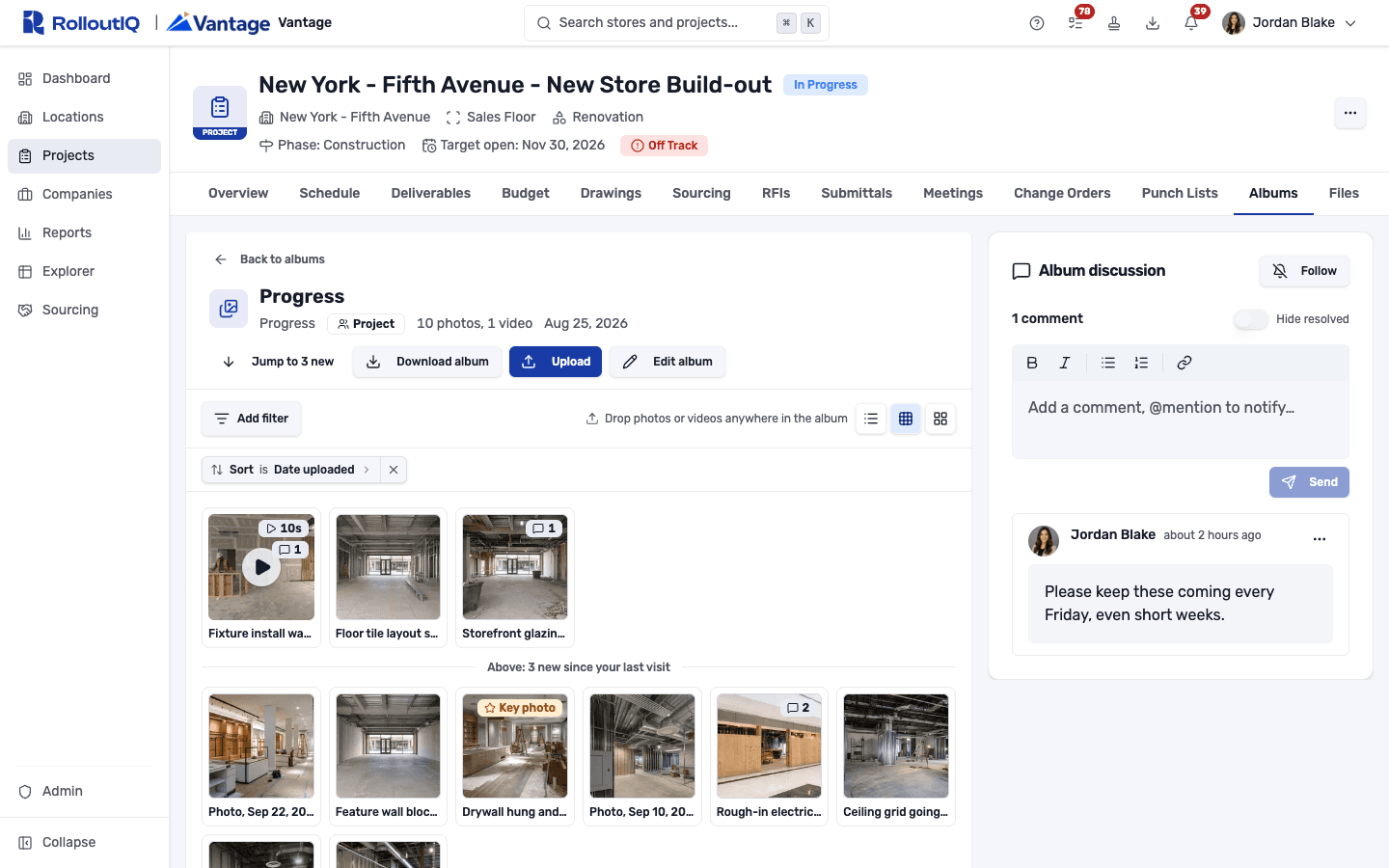
Photos sort by the capture date from the camera, or by upload date when there isn't one. Album cards and a marker inside the album show what's new since your last visit, leaving out your own uploads.
Comments on the Exact Photo
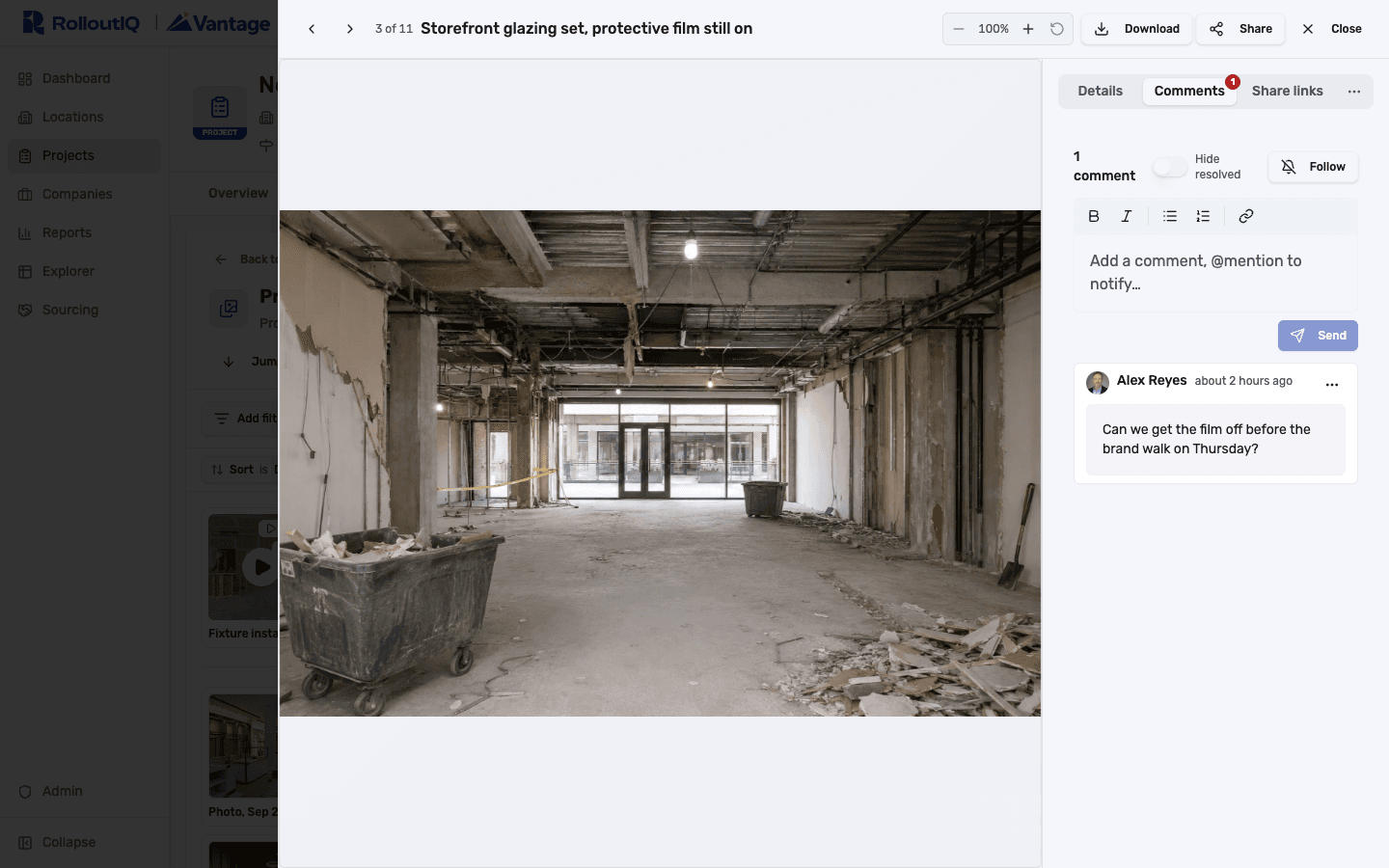
Each photo and video has its own thread, and the album has one for the whole set. When a photo moves to another album on the project, its comments go with it.
Video That Plays in Any Browser
Walkthrough videos up to an hour long, iPhone clips included, play in any modern browser from a prepared copy with a poster and a length badge. The original file is kept untouched and stays downloadable.
Highlights
Inside Photo Albums
These views come from a new-store build-out in the middle of construction.
Start where you left off
A marker splits the photos added since your last visit from the ones you have seen, and Jump to new takes you there. The album discussion sits beside the grid.
One photo, one thread
Open any photo to read its details and comment on it, then arrow through the rest of the album. The contractor sees your note right on the photo.
Decide who sees it before the first upload
Pick a type and a date and RolloutIQ suggests the name, then choose Project, Internal, or Private. The Internal and Private options appear only to people allowed to use them.
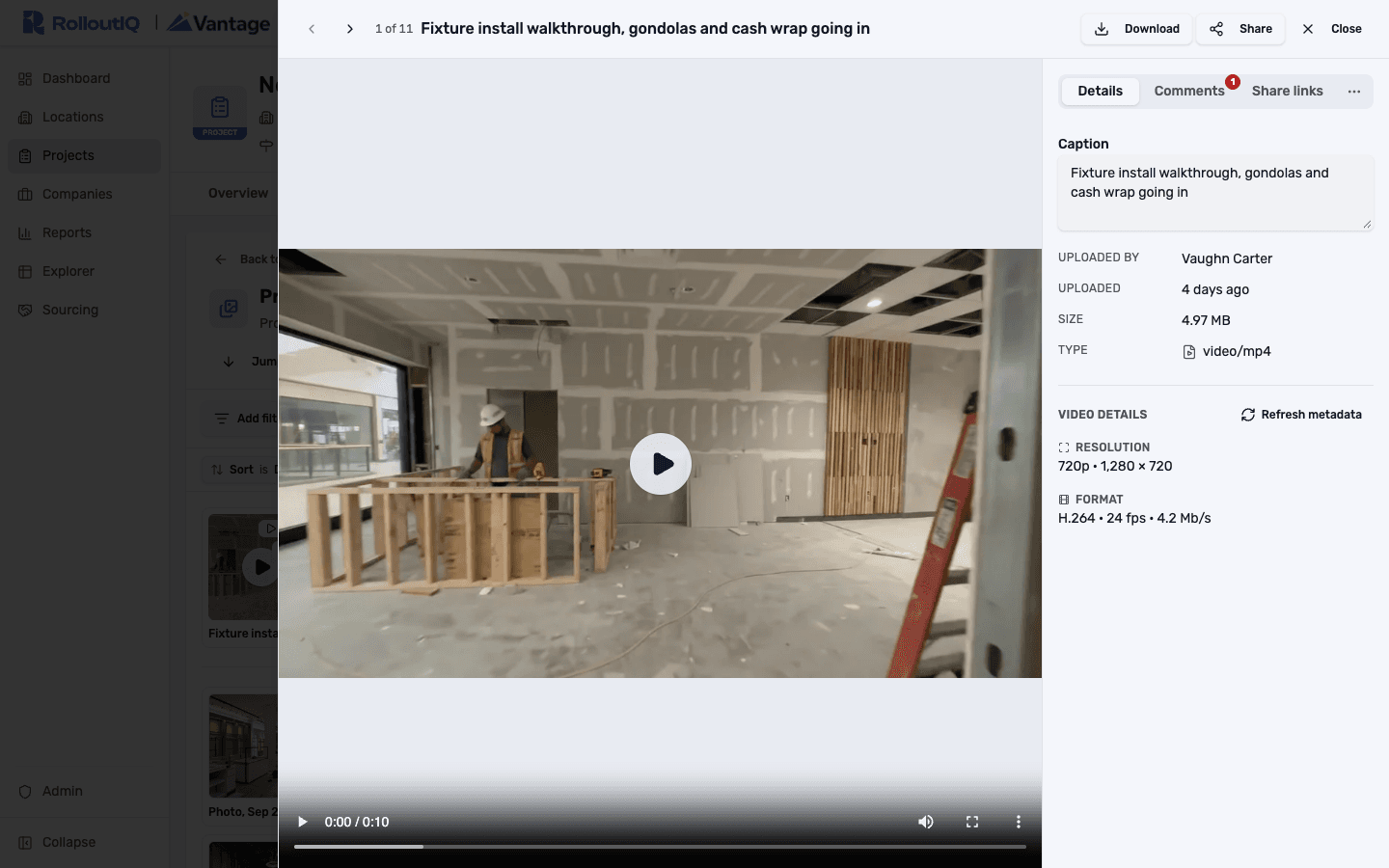
Walkthrough video, ready to play
Videos play in the viewer from a copy RolloutIQ prepares, with their recording details alongside. Download saves the original file as it was recorded.
In Practice
How Multisite Teams Use It
Review Eight Refreshes From Your Desk
Open each project's Progress album at the new-photos marker and work through the week in capture order, leaving a comment on the photo that needs a retake.
Keep Survey Photos Internal
Budget-sensitive site survey photos go in an Internal album on the same project, and the vendors working that store never see it.
Back a Change Order With the Original
The original photo is kept exactly as uploaded, with its capture date and location, ready for a change-order conversation or a defect claim.
FAQ
Photo Albums FAQ
It depends on the album's visibility. Project albums are open to everyone on the project, including vendors. Internal albums are limited to people at your company, and Private albums to the person who created them plus owners and admins. Owners and admins can see every album.
Yes. Vendors on a project can upload to its project-wide albums and manage the photos they uploaded. They can't see Internal or Private albums, and the albums they create are always project-wide.
Photos and videos: JPEG, PNG, HEIC, WebP, GIF, MP4, MOV, and WebM. Documents stay in the project's Files. Videos can be up to 2 GB by default, and a video longer than an hour can be uploaded and downloaded but won't play in the browser.
Yes. RolloutIQ builds the zip in the background and keeps a copy in My exports. A zip can hold up to 1,000 files and 5 GB, and zip downloads are available to owners, admins, and members by default.
Ready to Get Site Photos Out of Camera Rolls?
See how Photo Albums puts progress photos and walkthrough videos where the whole team can review them, with each comment pinned to its photo. Book a demo with our team.