
Custom Fields
Track the Attributes Your Rollout Program Runs On
Every retailer manages its program with a handful of attributes no two teams define the same way. A landlord, a shopping-center type, a fixture package, a TI allowance, a grand opening date. Custom Fields lets an admin add those to stores, spaces, and projects in minutes, and they behave like fields that shipped with the product.
The Problem
The Attributes That Matter Most Live Off to the Side
The details leadership asks about tend to sit in one person's spreadsheet, out of reach of the team doing the work and impossible to report on across the portfolio.
Program Data in Private Spreadsheets
When a landlord, a lease type, or a TI allowance lives in a side file, the record everyone shares is missing the attributes the program depends on.
Invisible to the Rest of the Team
The real estate manager keeps one copy and finance keeps another. Nobody is looking at the same numbers, and reconciling them is a weekly chore.
Nothing to Report On
You cannot filter a portfolio by an attribute that lives in a spreadsheet. Questions like which stores are on the new fixture package, or which have a TI allowance over a threshold, take an afternoon to answer by hand.
What RolloutIQ™ Does
Your Fields, on the Record Everyone Shares
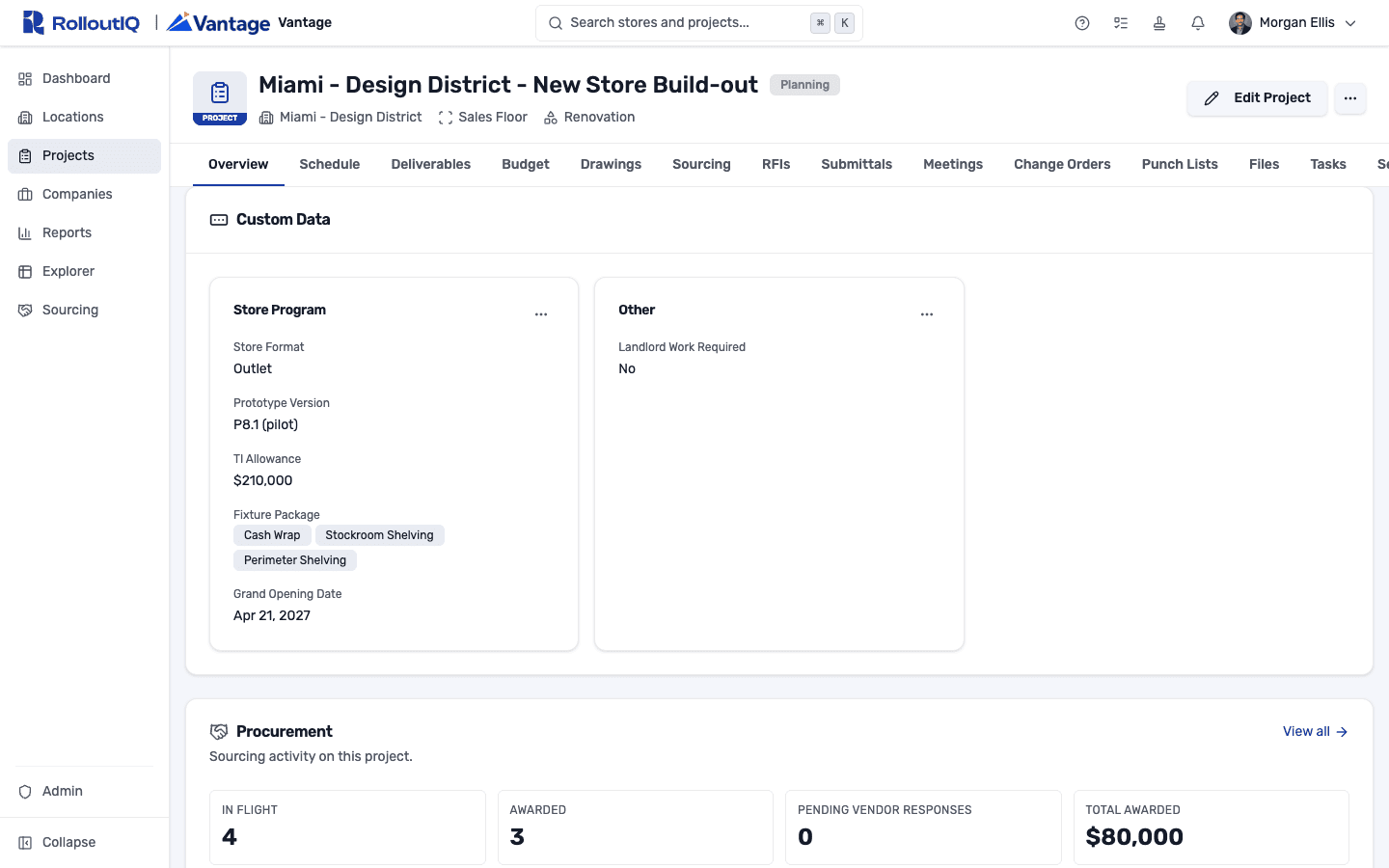
Define the fields your program tracks once, in the workspace Library, and they show up on every store, space, and project for the team to fill in and report on across the portfolio.
Three Record Types
Add fields to stores, spaces, and projects. A landlord and a shopping-center type describe the real estate, while a fixture package and a grand opening date live with the project that delivers it.
Seven Field Types
Text, number, currency, date, yes/no, single-select, and multi-select. A dropdown carries the exact options your team should pick from, so the data stays clean enough to filter and sort on later.
Grouped Into Sections
Organize related fields into titled sections such as Site and Real Estate or Store Program, and drag to reorder. Each section renders as its own card on the record, with anything ungrouped kept in an Other card.
Currency-Aware and Translatable
A currency field holds a currency per value, so a TI allowance reads correctly whether the store sits in Toronto or Austin. Field and option labels translate for teams working across languages.
Every Change on the Record
Open the history on any section to see who changed which field, from what value to what, and when. The same audit trail that covers the rest of RolloutIQ™ covers the fields you defined yourself.
Reportable in Portfolio Explorer
Add your custom fields as columns in Portfolio Explorer, then filter, sort, and export the whole portfolio by them the way you would any built-in field.
Highlights
Inside Custom Fields
From an admin defining a field in the Library to a filled-in record with a full change history, the whole loop stays inside the platform that already runs the project.
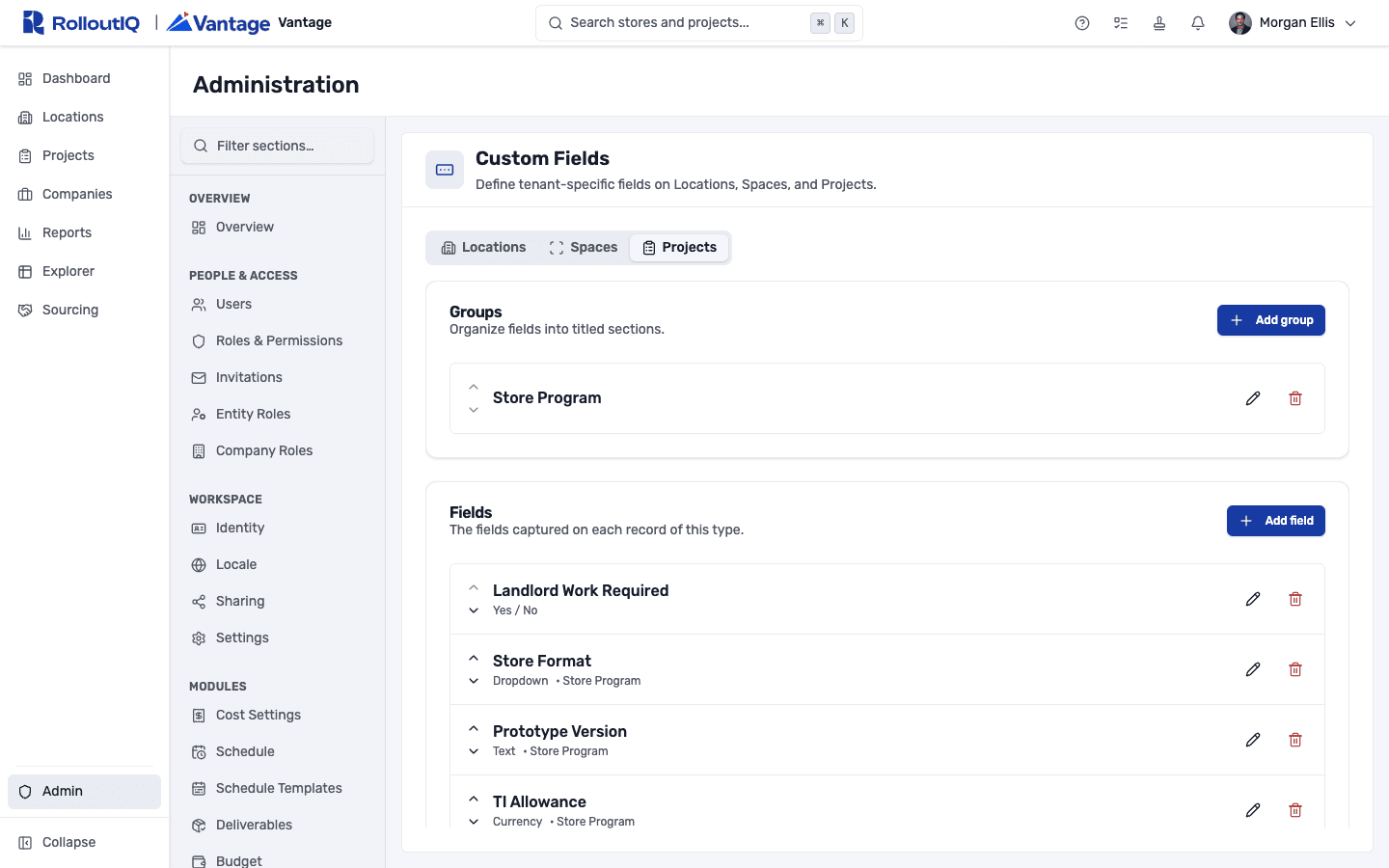
Field definitions live in the Library
An admin picks stores, spaces, or projects, adds the fields the program tracks, and groups them into sections. It needs no release or migration, and nothing appears on records until you add it.
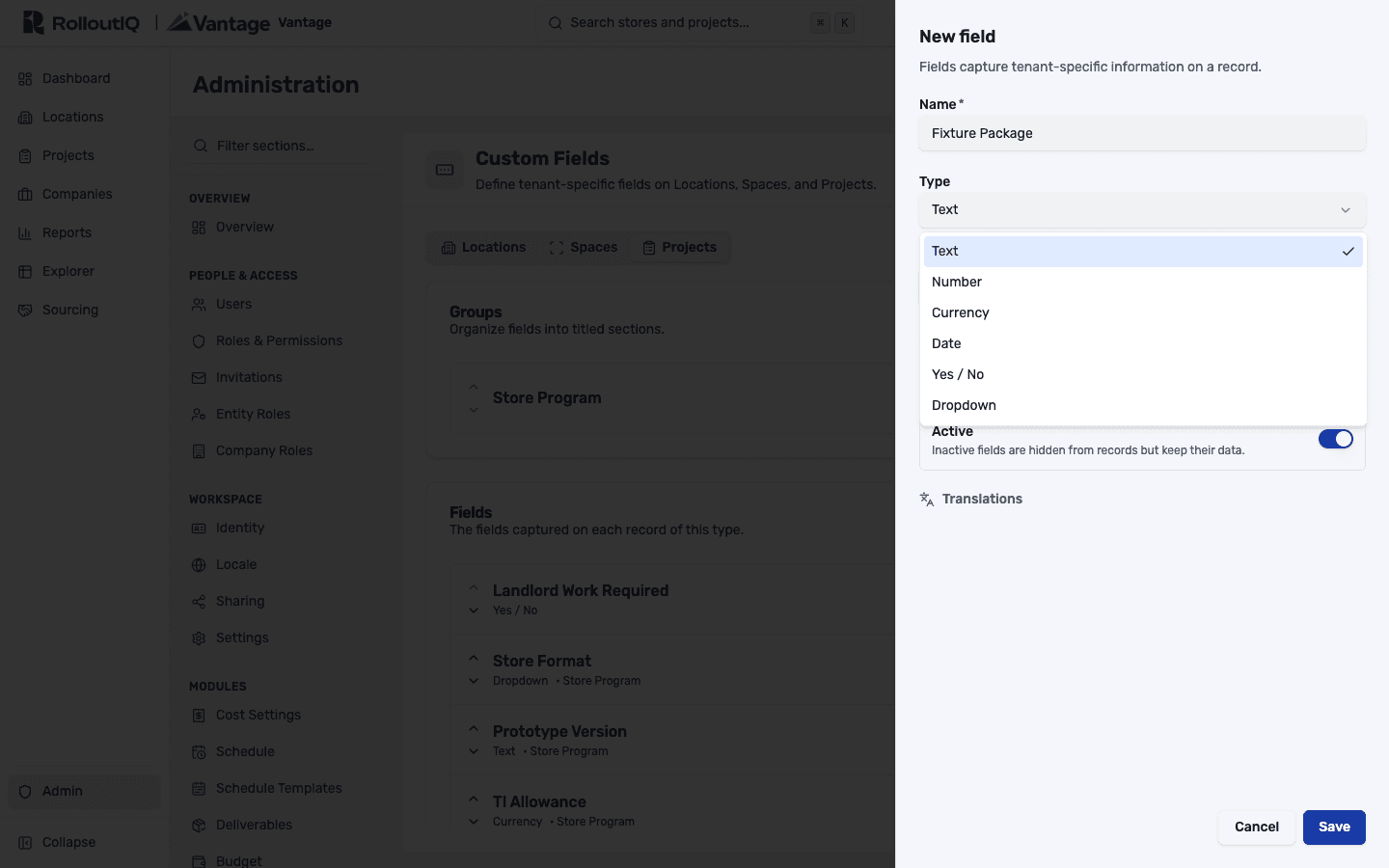
Pick the type that keeps the data clean
Each field is text, number, currency, date, yes/no, or a dropdown. A dropdown carries the exact options people choose from, which is what makes the field trustworthy to filter and sort on across the portfolio.
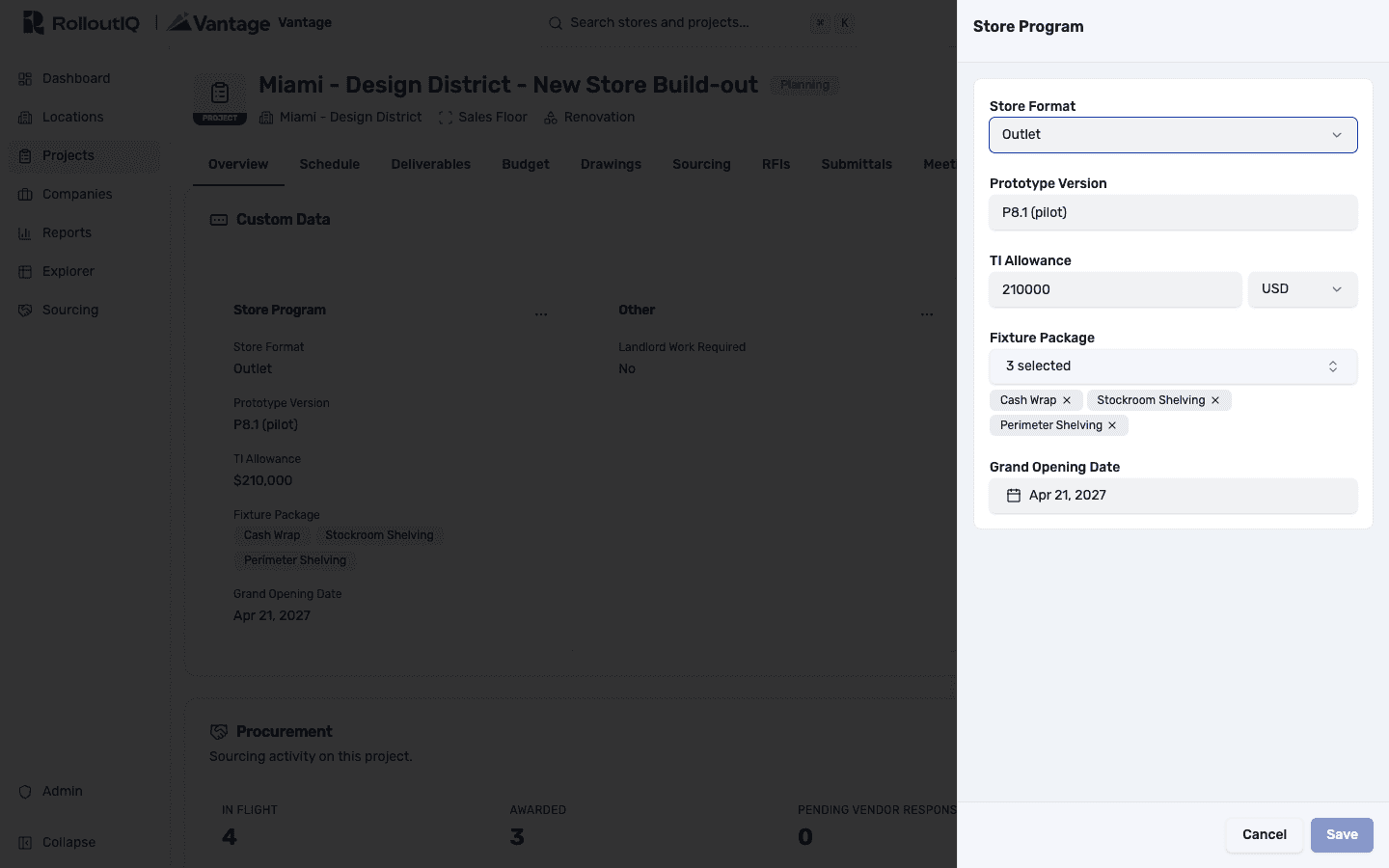
Fill in a whole section at once
Click Edit on a card to open a focused side panel for that section. Set a store format, a TI allowance and its currency, a fixture package, and a grand opening date together, and only what you change is saved.
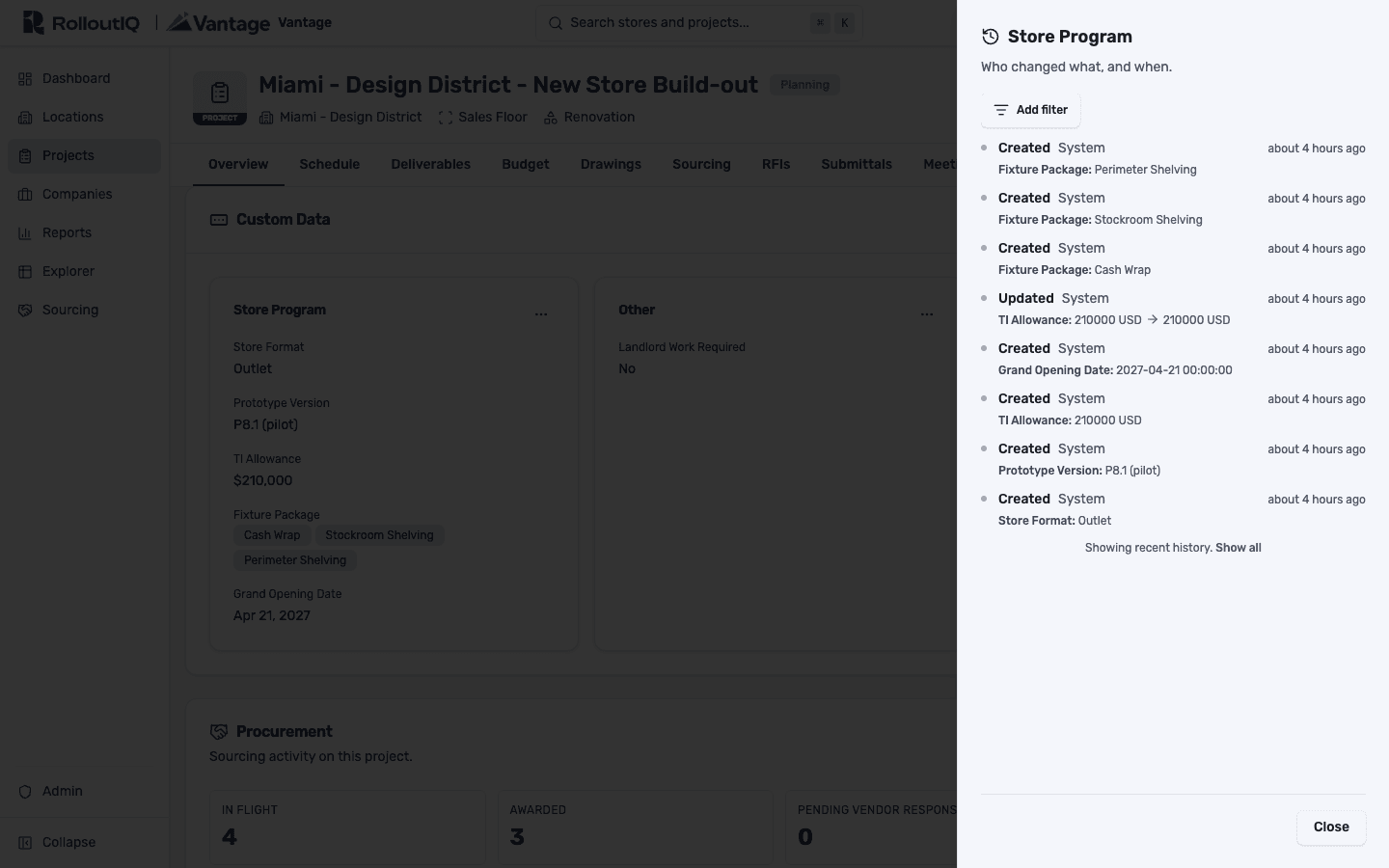
See who set what, and when
Every card carries its own history. Each entry names the field, the value it moved to, the person, and the time, so a number no one recognizes is one click from an answer.
In Practice
How Multisite Teams Use It
Capture the Deal Terms on the Real Estate
Put landlord, lease type, shopping-center type, and base rent on the space, so the real estate record carries the terms the rest of the team keeps asking about.
Track the TI Allowance Across the Portfolio
Add a currency TI allowance to every project, then sort and filter the portfolio by it in Explorer to see where the tenant-improvement money is committed.
A Program Question, Answered in Seconds
Filter Portfolio Explorer for the stores on a new prototype or the updated fixture package, and export the list instead of polling the team.
For franchise groups
Agreement deadlines you can sort by
Custom date fields can hold the development agreement deadline and the year a remodel comes due, and Portfolio Explorer then sorts every project by that date, so the nearest obligation comes first.
See RolloutIQ for franchise groupsFAQ
Custom Fields FAQ
Custom fields are fields your own team defines on stores, spaces, and projects, without waiting for a software change. You create them in the workspace Library, give each one a type, and they appear on every record of that type for people to fill in. They behave like built-in fields: filterable, sortable, exportable, and fully audited.
Seven: text, number, currency, date, yes/no, single-select dropdown, and multi-select dropdown. A currency field holds a currency per value, and a dropdown carries the exact options your team should choose from.
Defining fields is an administrator capability, set in the Library. Once a field exists, anyone who can view a record sees its custom fields, and anyone who can edit that record can fill them in. No extra per-field permission is needed.
Yes. Every custom field is available in Portfolio Explorer as a column you can filter, sort, and export by, alongside the built-in project, schedule, and budget columns.
Ready to Bring Your Program Data Into RolloutIQ™?
See how Custom Fields puts the attributes your team runs on where the work already happens, reportable across the whole portfolio. Book a demo with our team.