

Integrations
Keep Your Schedule in Smartsheet
Connect a project's schedule to a Smartsheet sheet and RolloutIQ mirrors it automatically, as a live read-only copy. Whoever owns the master schedule stays in Smartsheet. Everyone else works RFIs, budgets, and drawings in RolloutIQ off those same dates.
Weighing a full switch off Smartsheet? See how the two compare.
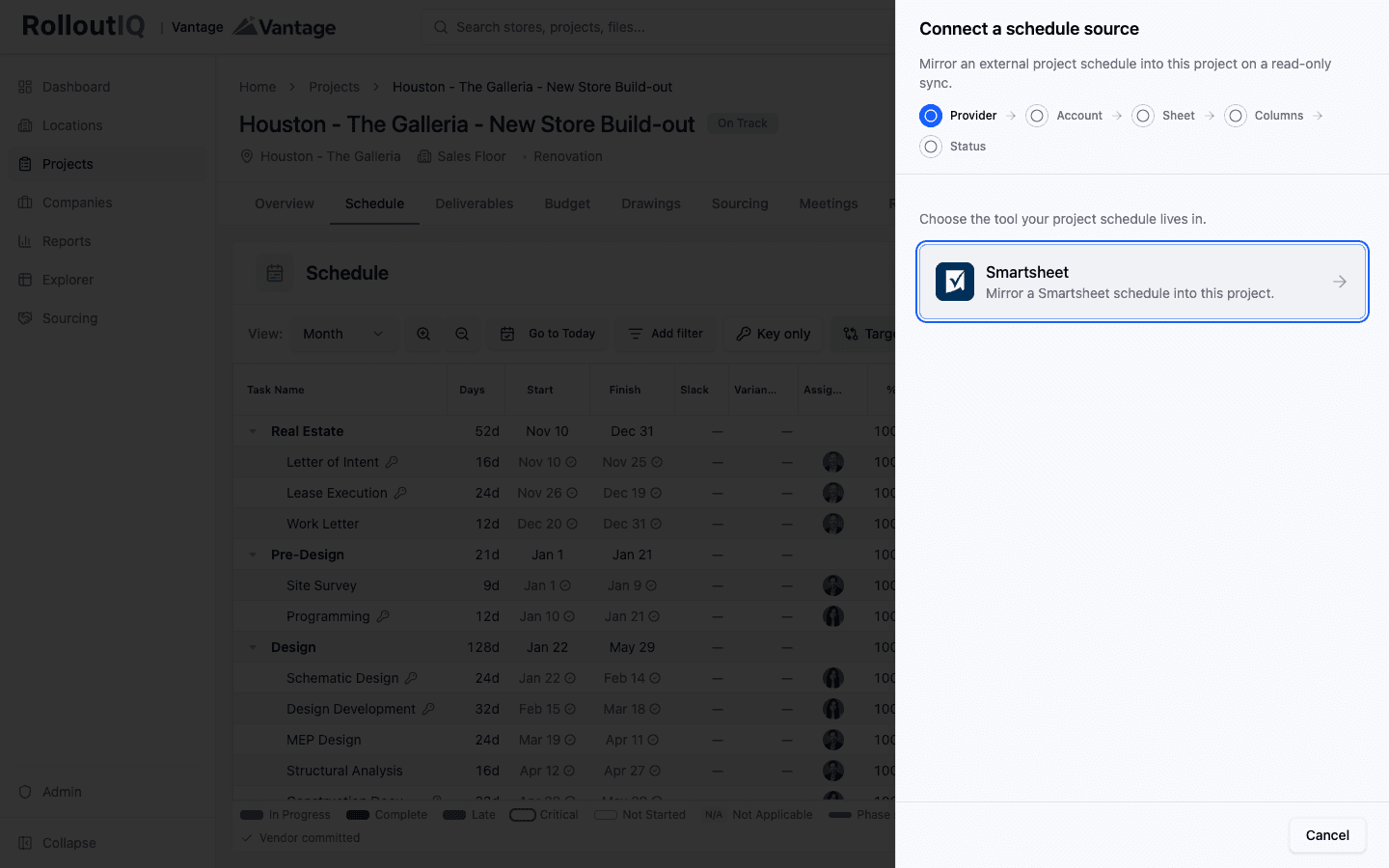
Connect a project's schedule to a Smartsheet sheet in a guided flow.
How it works
How the sync works
Map the sheet once, and RolloutIQ keeps the schedule current from then on. Setup is a short guided flow on the project's Schedule tab.
- 1
Enable it once
A workspace admin turns the Smartsheet integration on for your organization.
- 2
Connect a sheet
On a project's Schedule tab, an admin connects a schedule source, picks Smartsheet, and authorizes an account or reuses one already connected.
- 3
Map the columns
Point RolloutIQ at the columns that hold each item's name, start date, end date, and, if you track it, status.
- 4
Match the rows
RolloutIQ auto-matches sheet rows to your deliverables and phases by name, so you confirm most in bulk and only handle the exceptions.
- 5
Let it sync
From then on RolloutIQ pulls the sheet on a recurring sync, with an on-demand refresh whenever you want the latest.
Why it helps
One schedule, the whole platform on top
Teams stall on a new platform because they will not abandon their schedule. Mirror it instead, and the dates make the rest of RolloutIQ useful with no re-keying.
The mirrored dates land in RolloutIQ's model, and the rest of the platform keys off them. RFIs, budgets, and drawings all read the same timeline.
Smartsheet owns the dates. No argument over which system is right.
A last-synced indicator sits on the schedule, so nobody acts on stale information.
Mapped items stay read-only, protected from anything the next sync would overwrite.
Each project can use its own Smartsheet account, so a sheet kept by a franchisee or a general contractor mirrors in where it already lives.
Administration
For workspace admins
The integration is a per-organization module a workspace admin enables. Once it is on, admins can connect a sheet on any project, and you monitor every connection from one place.
- See every connected Smartsheet account and who connected it.
- Watch each project's sync health and catch a connection that has gone stale.
- Turn it off for the whole organization, or exclude a single project, whenever you need to.
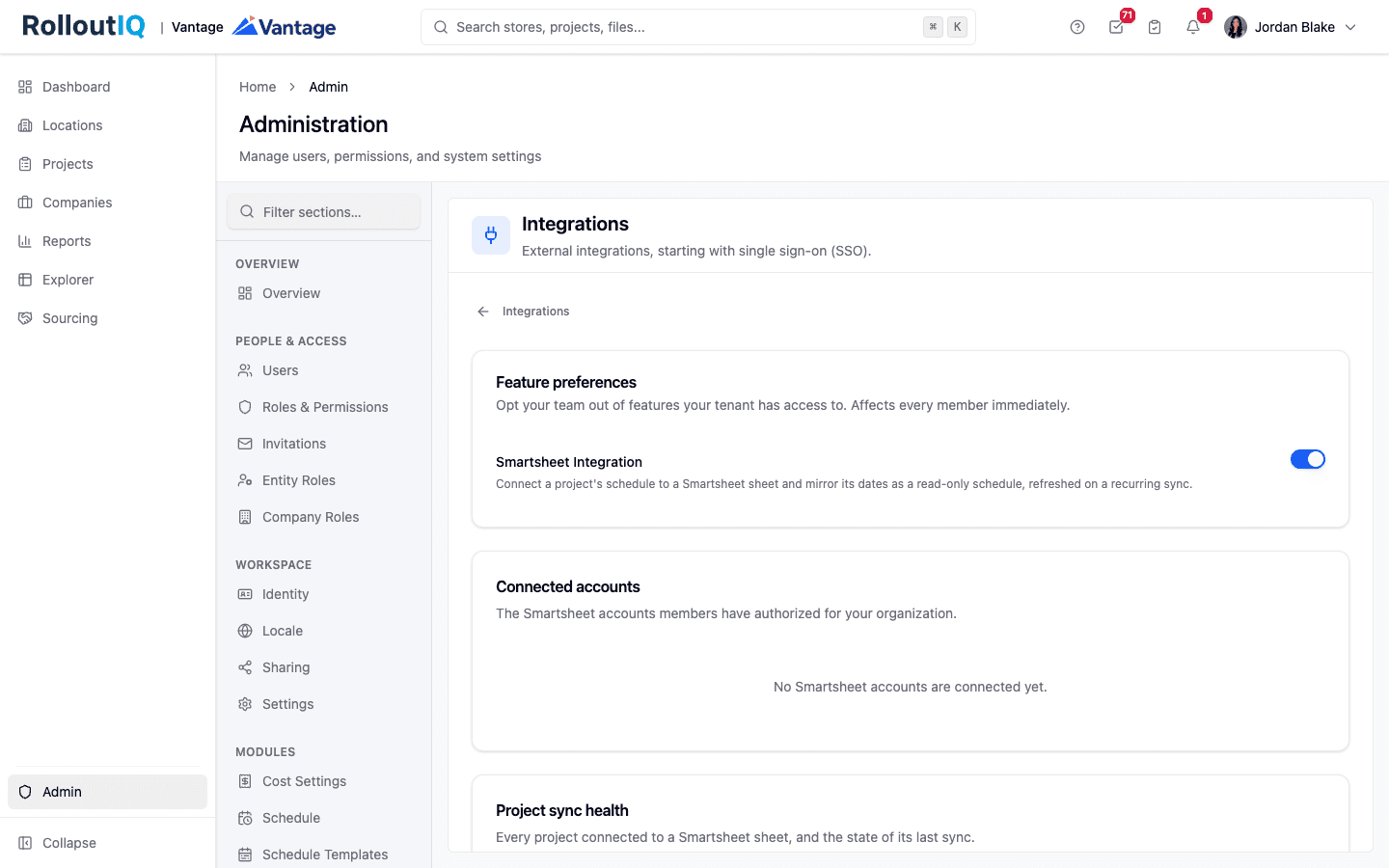
Enable the integration and monitor every connection from the admin area.
Limits
Good to know
Already run your schedule in Smartsheet?
Book a demo to see the mirror in action, and how the rest of the platform lights up from those dates.